Runt Post: Narbik’s CCIE Boot Camp, Day 1

A few months ago, Eman Conde (of CCIE Flyer) granted me a seat to attend an upcoming CCIE training class taught by none other than Narbik Kocharians. Well, today that officially kicked off.  And wow, what a week it is going to be.  Narbik’s classes are legendary and after today I can see why.  He began the day insisting the staff bring him the largest whiteboard they could find.  I *always* take this as a good sign. He then delved into his philosophy of teaching and I was thrilled to find that it very much aligns with how I like classes to be presented and how I learn best. He really drove home ideas based around explaining for understanding and hands on doing while learning.  I laughed when he said “if I say something but I don’t give you a lab on it, than it’s probably a lie.”

Today was mostly spent getting my keister kicked by a practice evaluation lab that was supposed to be easy. Yes, did I mention drinking from the fire hose this week? But tomorrow should be more teaching and doing as alluded to earlier in the day.  I am really interested to see what Narbik calls “teaching the theory from the command line perspective” looks like.

Still more troubleshooting homework to finish up, so that’s all the updates for now.

Published 5/5/2014

While Eman and CCIE Flyer were very generous to grant me a seat in this class and I am very grateful for it, my opinions are totally my own, as all redheads are far too stubborn to have it any other way.

Not All PRIs Connect to Telcos…

Occasionally in voice world you end up configuring PRI connections to devices other than telco gateways. Sometimes these are PRIs between PBXs, fax servers, or other third-party vendor voice gateways for applications. These are typically connections internal to the organization versus a PRI to the outside world. Many times these require you to think just a little bit differently than your standard PRI turn-ups to get to that fabulous MULTIPLE_FRAME_ESTABLISHED goodness.

I’ll offer you a few things to look out for should you find yourself in this type of situation.  Keep in mind that no voice installation is ever *standard* so your mileage may vary.

1. T1 crossover cable. It’s a thing.  Often times the vendor bringing in their voice gateway will tell you things like “it’s just an RJ45 hand-off” or “just provide us a straight-through cable” but don’t believe the lies. More often than not in cases where you are going from your voice gateway to a vendor’s voice gateway, you will need a T1 crossover cable to achieve blinky green light success. You can order these via your favorite cable vendor or Google it to see the pin out and make one yourself, should you be that kind of handy.

2. ISDN switch-type. When you setup a PRI with a telco, they tell you what switch type and line encoding you will use, not much room for creativity.  With these back to back non-telco PRIs, I have found that vendors often have no idea what switch type you should be using and just start naming some that sound believable.  As with any PRI, you need to find an ISDN switch type that both sides can support and this could take some guessing if the vendor doesn’t know. For what it’s worth, I have had a lot of success with primary-5ess, but terrible luck with primary-ni. Of course the switch types and line coding must match between the devices.

3. “Reverse” dial-peers. Typically dial-peers follow a general standard of sending 4 or 5 digits to the CUCM and sending local, long distance, and international patterns out the serial interface of the PRI.  When passing calls between gateways in an internal situation, you need to think about what is going to be coming across to your voice gateway from this new PRI connection.  Many times it’s devices that will be trying to make outbound calls. That means they will be sending calls to your gateway and then your gateway will need to pass them to CUCM to send them out.*  You will also need to communicate to your third-party application configuration team (which may be you) the correct pre-pending for the vendor to use in order to match your dial-peers. For example, will the devices be dialing with a 9 or without?  Here’s an example of a dial-peer that would handle a local call by sending it to CUCM for further processing. Note, in the example I am requiring the vendor to pre-pend**:

dial-peer voice 10 voip
destination-pattern 9[2-9]………
modem passthrough nse codec g711ulaw
session target ipv4:10.10.10.10
dtmf-relay h245-alphanumeric
no vad
voice-class codec 100
voice-class h323 1

4. ISDN, someone needs to be in charge. This where the fairly obscure isdn protocol-emulate network command comes in.  The default in IOS, which you don’t see (because it’s the default), is isdn protocol-emulate user.  You may need to change this to get the PRI to a MULTIPLE_FRAME_ESTABLISHED state. To do so you add the emulate network command under the serial interface like so***:

interface Serial1/0/0:23
no ip address
no ip directed-broadcast
isdn switch-type primary-5ess
isdn protocol-emulate network
isdn incoming-voice modem
no cdp enable

Fortunately troubleshooting these types of connections are about as straight forward as other ISDN PRIs and debug isdn q931 is your best friend. Also, debug voip dialpeer all comes in super handy.

Published 4/30/2014

*this assumes the new vendor PRI and your current telco PRI are not terminating on the same box.  If they are you may need to enable h323 to h323 connections as well as deal with any clocking issues from having basically two providers housed in the same box.  There are specific caveats on making this type of scenario work, refer to Cisco’s documentation for your gateway.

**keep in mind that POTS dial peers consume, that is strip, explicitly matched digits and voip dial peers do not. So if, for example, you are sending a four digit extension across to the vendor’s gateway via a POTS dial peer with a destination pattern of 5000, you should add a forward-digits all to the dial peer to compensate for this behavior.

***bonus information on the isdn protocol-emulate network command

Voice basics: upgrading firmware for specific phone models

Occasionally in voice world you are required to update firmware for just certain phone types and not others. Say for example you’ve received a batch of those 7945 or 7965 phones that only support 9.3(1)SR1* and you aren’t running that version of firmware on your CUCM yet. There are just a few simple steps and gotchas to watch out for to get this firmware up and running on these phones.

First, hop on over to cisco.com and download the firmware files for CUCM.  In my case, I downloaded cmterm-7945_7965-sccp.9-3-1SR4-1.cop.sgn.**

Save the file to your sFTP directory and launch your sFTP client.  I typically use FreeFTPd, but use whatever sFTP client you are comfortable with.

Now before you go off installing firmware files, there is one crucial step I would always recommend:

Log into CUCM, navigate to Device Settings -> Device Defaults -> [models of phones you are upgrading]

Copy and paste the current value of the default firmware into Notepad or Evernote or whatever program you use that helps keep you from losing stuff.

In this case, I copied SCCP45.9-2-1S which was the default device firmware for the 7945 and 7965 phones.

Next jump on over to the publisher and navigate to OS Administration -> Software Updates -> Install and Upgrade. Walk through the prompts to upgrade from sFTP, select your file, check the MD5 hash, and start the install.

Once installed, repeat the process on the subscribers as well.***

Now at this point, newbies to voice might think that their work here is done, firmware file installation reported complete, so what could be left? Well, it’s voice, it’s *never* that easy.

In this case, the system has actually done you a favor.  If you jump over to CUCM Administration, you will see that the device default fields for your phone models have been updated to the version you have just installed.  Because, however, you have not stopped and started the TFTP service, you have a fabulous opportunity to paste back in your old version value if you would like, before the TFTP service is reset and the system starts upgrading your phones.  I typically copy and paste the new value to Notepad and place the old value back into the appropriate fields. Now I can apply the firmware to a single test phone and not *all* the phones of that model type before rolling the firmware out.  This becomes massively more important when dealing with some of the newer phones and brand new releases of code.

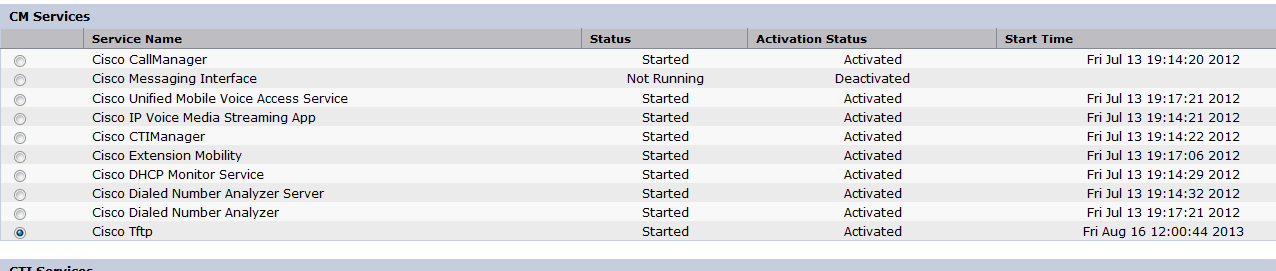
Then it’s over to Cisco Unified Serviceability -> Control Center – Feature Services to restart the TFTP service on each node.

tftpservice

Now, to test your new firmware on a specific phone, find that phone in CUCM and paste the new firmware value into the Phone Load Name field.  Reboot the phone and it should then grab the new version.

Phoneload

Once you’ve established that the new code doesn’t bork your shiny Cisco device, paste the new firmware value into the appropriate Device Defaults field for your phone models. Then all phones of that type will be able to upgrade to that version.

*There are certain 7945s and 7965s shipping now that only support 9.3(1)SR1.  I missed any official announcement but remembering hearing rumors of this at Cisco Live.  The phone will register without you upgrading the firmware files on CUCM, but if you ever reset it to factory defaults, it won’t register again.  At that point, I offer you this help on fixing bricked phones

**It should go without saying, but I’ll say it anyway, always read the release notes and check the compatibility of the file(s) you are selecting. Voice is extremely unforgiving if you choose not to read the fine print.

***Technically you really only need to do this on the server(s) that are acting as TFTP servers, but I like the consistency of all the servers having the files in case one should need to take over that role unexpectedly.

Published 3/4/2014

Intro to MSE: The setup wizard

Not only do I stumble around firewalls these days, but I also get to fumble my way through the vast world of wireless as well. Currently part of a project to upgrade WCS and 4400 series controllers to the latest and greatest, I found myself installing MSE virtual appliance and ran across a few oddities.

I ended up using this guide MSE Software Release 7.2 Virtual Appliance Configuration and Deployment Guide even though I was installing 7.4, frankly because I couldn’t find the equivalent guide for 7.4 with step by step screen shots and instructions that engineers like me cling to.  There is this 7.6 guide, but it doesn’t have quite the same level of detail on the wizard process as the 7.2 version.

Couple of notable steps given my experience going through the setup wizard for MSE:

When the documentation says to change the root password and the minimum password length is 8 characters, it’s mostly lying.  Fourteen was required, as well as some complexity requirement that took a bit to dechiper. I tried a zillion passwords with every category of complexity I could summon until the security gods finally accepted my offering.  Upon consulting the oracle that is Google to find out what in the wild world of the obvious I was missing, I found this support form post that suggests I could have skipped this step, changed the security restrictions in a future step, and then re-ran the wizard. Fabulous.

The other thing to take note of is that when the installation finishes, even after rebooting the box, the MSE service doesn’t automatically start. This is mentioned in some documents but not others. If you don’t start the MSE service, when you go to add the MSE to the Prime Infrastructure server, you will get an error that the MSE server doesn’t much like you and won’t be talking to you.

The fix for this issue is rather simple, log in as root and issue the command: service msed start

After this, I was able to add the MSE to Prime without a problem. Woot.

Published 2/27/2014

Stumbling around the Fortinet CLI…

Blaming the firewall is a time-honored technique practiced by users, IT managers, and sysadmins alike.  As network engineers we could point out that solar flares are as likely a cause of the [insert issue of the day] as the firewall, but honestly, if they can’t see that the software updates they just did are likely the true reason the thing that wasn’t broken now is, chances are you aren’t going to convince them the firewall isn’t actively plotting against them.

My most successful strategy has been to take up residence in Wireshark Land, where the packets don’t lie and blame-storming takes a back burner. Recently, for example, I took captures on two Linux servers, one a web server in the DMZ, and one a database server on the internal network. The captures showed that the web server could initially reach the database server, but that communications broke down after a few minutes.  The database server clearly didn’t get the last of the web server’s packets.

Realizing there may actually be something to the “it’s the firewall” claim, I turned to the CLI of the firewall to see if the packets were even getting to the firewall interface and then out the other side. If you haven’t done this in the Fortigate world, it looks something like this, where port2 is my DMZ port:

My_Fortigate1 (MY_INET) # diag sniffer packet port2 ‘host 10.10.X.X’
interfaces=[port2]
filters=[host 10.10.X.X]
1.753661 10.10.X.X.33619 -> 10.10.X.X.5101: fin 669887546 ack 82545707
2.470412 10.10.X.X.33617 -> 10.10.X.X.5101: fin 990903181 ack 1556689010

I ran a similar sniffer session to confirm that the database server wasn’t seeing the traffic in question on the trust side of the network.  Sure enough, a few minutes after initially establishing communications, packets making it from the web server to the DMZ side of the firewall, quit making their way to the trust side of the firewall, not even getting a chance to talk the database server.  The traffic log from the FortiAnalyzer showed the packets being denied for reason code “No session matched.” Fabulous.

Thinking it looked to be a session timer of some kind, I examined the Fortigate policies from the GUI admin page, but couldn’t find anything labeled “hey dummy, here’s the setting that’s timing out your sessions.”  That’s because the setting I was looking for is apparently only seen in the CLI.*

The CLI showed the full policy (output abbreviated), including the set session-ttl:

My_Fortigate1 (My_INET) # config firewall policy
My_Fortigate1 (policy) # edit 50
My_Fortigate1 (50) # show full
config firewall policy
    edit 50
        set srcintf “port2”
        set dstintf “port1”
            set srcaddr “MY WEBSERVER”            
            set dstaddr “10.10.X.X” “Servers_10.10.X.X/32”            
        set rtp-nat disable
        set action accept
        set status enable
set session-ttl 0  

A session-ttl of 0 says “use the default” which in my case was 300 seconds. I was able to up this just for the policy in question using these commands:

My_Fortigate1 (My_INET) # config firewall policy
My_Fortigate1 (policy) # edit 50
My_Fortigate1 (50) # set session-ttl 3900
My_Fortigate1 (50) # end

This gave the application we were dealing with in this instance enough time to gracefully end sessions before the firewall so rudely cut them off and also managed to keep my database guy from bugging me anymore (that day).

*If this is in the GUI, I certainly do not possess patience levels high enough to take the time to find it, but feel free to point me to its location in the comments.

Published 2/4/2014

It’s been mostly dead all day…

Setting a misbehaving phone back to factory defaults is a great way to cure endpoint wonkiness*.  This process successfully eradicates a multitude of demons, but recently my reset results were more of a botched lobotomy than a successful exorcism.  The phone powered on, cycled to the Cisco logo screen, spat out curses about my mother, and power cycled itself again. Cue infinite loop. Please note, it might have been me doing the actual cursing…

So what do you do with a rather expensive Cisco brick besides throw it at well deserving users?

Well, you’ll need a couple of things to pull off this miracle – first, a really large cloak**…nah, only kidding, but you will need firmware files.  Yep, head on over to cisco.com and locate the firmware files for your phone model.  You are looking for the individual files versus the .cop file for CUCM.  In my case, I had a beautiful 7945 brick, so I downloaded cmterm-7945_7965-sccp.9-3-1SR2-1.zip.

You will also need tftpd32 or tftpd64. I guess technically you could use any tftp server application, but this one is free, easy to configure, and I know it works.

All you need now is to build yourself a little network island using a stand alone switch and some patch cables. You will need to provide a DHCP address to your phone with the option 150 set to the IP of your laptop.  I used a small layer 3 switch that I could configure a DHCP pool on.

Next up, configure tftpd32 as a server and place the firmware files in the correct directory.*** Rather than reinvent the wheel, here is a good post on configuring tftp32 as a server: http://www.tricksguide.com/how-to-setup-a-tftp-server-tftpd32-windows.html

Once you have your laptop and the phone in the same vlan with the TFTP server running, you should start to see the magic happen. It should look something like this when your firmware files are being downloaded by the phone:

filetransferbrickphone

This should bring your phone back to the land of the living, if you’re lucky.  But since you are already at this point I am highly doubting your luck, so here is a post with a few more ideas that may help as well: https://supportforums.cisco.com/thread/2007970

Published 12/5/2013

*wonkiness: the term a voice engineer uses to explain the unexplainable behavior of a device that is configured correctly but is clearly possessed by an evil spirit with an extremely vindictive sense of humor.

**Not surprisingly, another Princess Bride reference, just go watch it already.

***Should you forget or not realize what directory your tftp server is set to serve up files from, and yes sadly I am speaking from experience on this one, you can buy yourself a clue in the form of a Wireshark capture.  You should see the file being requested in the capture. If you are seeing a request like the one below, then check the location of the file. If not, check your DHCP bindings and confirm the phone is getting an address with the option 150 set.

term45


App-titude

So unless you were living under a rock this week, you might have heard a little something about Cisco’s Application Centric Infrastructure (ACI) announcement. With the ongoing SDN craze, the emphasis in networking has become all about the applications, which I find amusing since, you know, previously we were building networks just because they looked cool.

But (most) snark aside, in all the tweets, blog posts, news articles, and RFC 1149 carrier pigeon delivered communications, some pretty cool tech was announced; and what it all means is likely to be hash-tagged and rehash-tagged till the proverbial cows are pingable at 127.0.0.1.

Here’s a summary just in case you missed all the excitement:

The ACI announcement  brought to the table a new switch line – the 9000 series and the APIC controller. This news represents at the very least two potentially nifty things: merchant silicon mixed with custom ASICs for a more cost-effective big ole data center switch, and a controller (dubbed APIC) that provides for what I can best describe as Service Profiles for networks, a concept extrapolated from UCS.  This isn’t too surprising since several of the instrumental developers at Insieme were also key in the development of the Cisco UCS product.

Word on the street is that the controller becomes available sometime next April and between it and the 9000 series switches, the ability to do magical things with your network will be unlimited. Well, maybe not unlimited, but certainly flirting on the boundaries of freaking awesome.

Here’s what I like about this play from Cisco – it straddles the fluidly defined SDN fence quite nicely. If you’re not ready or not sure about going all in on the Cisco SDN experience but want to build a network that could potentially play in this space, the 9000 series appears to offer that opportunity. If initial pricing estimates are to be believed (yes, that makes me giggle as well), the 9K is competitive in pricing and port density.  The concept of a Service Profile for a network is also extremely intriguing and a unique way of framing the SDN picture, a picture that morphs often enough it can feel like nailing Jello to the wall.

A couple of things I would like to see more information on: licensing and compatibility. As a recovering voice engineer, I still cringe (and twitch) every time I hear the word entitlement. It’s critical that Cisco not bog this product down with a cumbersome licensing model. That kind of beating will have engineers looking for alternatives faster than the reported line rate of the new 9K.

When we talk about compatibility, I am curious to see how engineers will leverage their current investment in existing Nexus equipment given this new switching line. The 2Ks were specifically mentioned as being part of the ACI solution, but it’s a little murkier how the 5Ks and 7Ks will play into the solution.

There are quite a few resources and fabulous content on ACI that is continuing to fill in the gaps for me, so definitely check these out:

Matt Oswalt’s three part blog series on Keeping It Classless

Cisco Application Centric Infrastructure | Overview by Joe Onisick

Unicast Operation in Cisco Nexus 9000

The Cisco / Insieme ACI Launch, Part 1 by Pete Welcher

9000 Series White Papers

Class C Block – Show 12 – Insieme and the Nexus 9000

Cisco ACI Solves All Your Data Center Network Problems by Greg Ferro

Cisco Launches Its Secret Startup Insieme, Then Buys It For $863 Million

Cisco takes fight to SDNs with bold Insieme launch

Insieme’s Insides Use (Gasp!) an Overlay Protocol

Taking the Measure of Cisco’s Insieme by John Herbert

Show 167 – Cisco ACI Software Defined Networking – A First Look

Cisco Nexus 9000 and ACI: Promising P+V Architecture by Ivan Pepelnjak

Who Supports ACI and Why (Network World)

Cisco Application Centric Infrastructure: Nexus 9000 by Bob McCouch

Bonus material, Cisco also announced extremely cool BiDi 40 Gbps QSFP modules, check out the details here, this is a huge deal that saves a lot of money when making that jump to 40 gig:

Migrate to a 40-Gbps Data Center with Cisco QSFP BiDi Technology

40GbE Over A Single MMF Pair? With QSFP-40G-SR-BD, You Can. by Ethan Banks

A special thanks to Tech Field Day for inviting me and to Cisco’s Amy Lewis for making all the bloggers feel at home. Special thanks to @networkingnerd who has a special gift for cat, err, geek herding.  You all rock.

Amy Awesomeness

Standard Disclaimer: Tech Field Day covered my expenses at the ACI launch, but I am a redhead, any thought that my opinions could be bought or dictated is just crazy talk. 

You built a data center, out of a DeLorean?!

Big thanks to Juniper Networks not only for the opportunity to build my dream data center, but to build it out of Legos!  The contest to build the best Lego data center couldn’t have been more fun to participate in, now I shall show off my outstanding results!

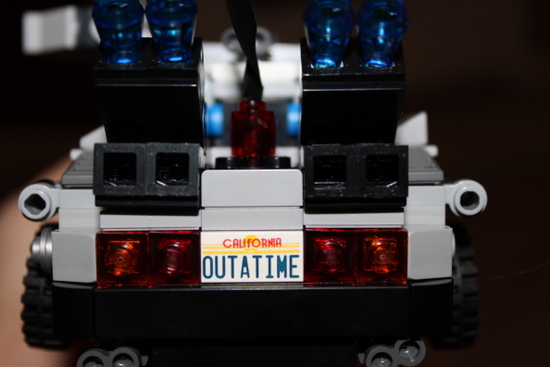
Behold, the data center of the future! Make that the data center from the future!

IMG_3062

As you can see, my dream data center has full wireless access, comprehensive monitoring, and brings data center mobility to a whole new level.

IMG_3061

Fully stocked with Juniper gear and a top of the line Flux Capacitor, this data center means no more worrying about pesky outages & restores, it really can be like they never happened. Please use caution when implementing roll back features using the space-time continuum module, I take no responsibility should you make it like *you* never existed either…

IMG_3070

My dream data center is staffed with only the most qualified professionals willing to go out on a limb, literally, to meet customer demands.

IMG_3060

IMG_3052

And I can’t this of a better way to close this post than this image, note the next generation exhaust system solution, top of the line construction, and down right awesomeness factor!

IMG_3088

Please consider going green and purchasing the Mr. Fusion upgrade kit to assist in generating that required 1.21 gigawatts of power, clean energy is the future after all!

When switch ports lie…

Ah, that moment when you solve some weird IT issue in record time while a suitably impressed customer watches. The customer thinks you’re a genius yet you know you honed in on the solution so quickly not because of your crazy amount of talent and good looks (although these helped of course), but because you instantly recognized the peculiar, tell-tale signs of the odd ball problem at hand. Somewhere along the line you had seen it before and the memory stuck with you. And likely keeps you up at night, but that’s another story…

For that reason, I offer you this: a short recollection of symptoms I experienced when troubleshooting a data cable that turned out to be *mostly* plugged in.

After some re-cabling recently, my team was tasked with testing to confirm everything was coming up roses.  All was good except for one thin client workstation out of 12. This one thin client couldn’t get a DHCP address, but every other device plugged into the same switch was good and chugging along.

I initially checked that the switch port was up and confirmed a physical status light of green as well.  I also checked to see that a mac address was being learned off the port in question and looked at the interface statistics. From a physical perspective, things were looking good. I did try another port on the switch, but the issue persisted. At this point, some engineers would be inclined to look higher up the network stack or at a misconfiguration of the client. The single reason I hesitated to pursue this line of inquiry: I could reliably confirm the client worked before and that only the wiring had changed.

Now my regular blog readers can probably predict what I did next – yep, Wireshark to the rescue!  In short order I had a SPAN port setup on the switch and within minutes I was looking at packet capture goodness.  Want to take a guess what I didn’t see in the capture?  A DHCP request from the client.  In fact, I wasn’t seeing any packets from the host in question. Not what I was expecting.

Knowing packets don’t lie, I had to assume the issue was lower in OSI stack and sure enough, upon closer investigation, the wall cable to the device was just a wee bit loose.  Now admittedly, I could have gone over to that room and checked the cable first.  A loose or damaged cable would definitely have been a likely cause given the re-cabling scenario. Let’s be honest, however, I’ll use any excuse to fire up a packet capture.  I highly encourage this habit too because seeing what “normal” and “abnormal” traffic looks like will go along way toward making you a better engineer in the long run.

So there you have it.  Port looks up from a physical perspective, switch sees something alive on the port, but the device can’t get a DHCP address, you should be sure to check the cable to see that it’s seated properly. For some of us, this is old habit anyway, but now you can add this to the list of symptoms for this type of hardware issue. Just another helpful way to streamline your troubleshooting process.

Published 10/15/2013

Validation failures: Configuring 1 Gbps uplinks for UCS

Okay, so most people configuring UCS are doing so with 10 Gbps links.  Say, however, you are (not so) patiently waiting on budget approval for that 10 GB blade and you have a sad that your shiny UCS is collecting dust. Cheer up, my friend, you can use 1 Gbps connections to bring that chassis online.

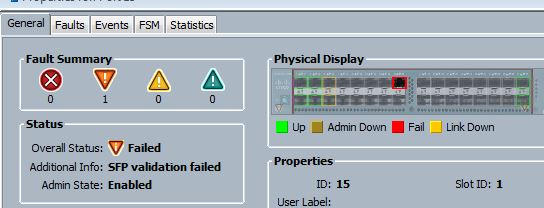
When you initially insert your GLC-SX-MMD transceiver into your 6248 Fabric Interconnect, you are likely to see this rather unfriendly message*:


SPF Validation Failed

Fear not, your SFP is only in a failure state because you haven’t let UCS in on your brilliant plan to use lower speed links for the time being. You need to do this by clicking the Show Interface for the link in UCS Manager and selecting the 1 Gbps radio button.  As you can see in the screen shot below, the default is 10 Gbps:

10 Gig Setting

Once selected, the UCS will quit whining about so-called validation failures and let you configure the port and the port channel that will make your sys admin happy. Well, okay let’s be realistic, make your sys admin happier. Also, as a side note, be sure to use LACP in that port channel configuration, that is if you want it to actually work. Filing one that under lessons learned during this adventure as well…


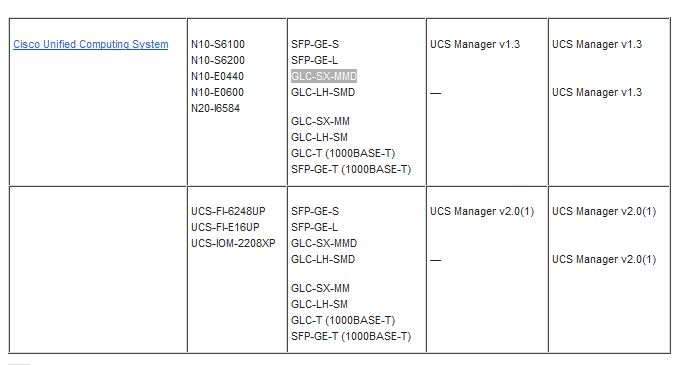
*if you refer to the Data Sheet for the 6200 Series Fabric Interconnects found here you won’t see the GLC-SX-MMD listed. My VAR sent me over the screen shot below to assuage my fears after TAC initially told me the SFP wasn’t supported. I have yet to locate the original doc on Cisco’s website, if you have a link, please feel free to post it.  

SFP-Support-6248