Just a simple password change…

Update: what follows applies to IOS as well, but apparently I had never tried making the mistake described below until now. Yay me?! 

Okay regular readers, don’t freak out, but this post has absolutely nothing to do with voice. Not even a little. But I suggest you go with it because change happens and we love it.  (No, we really don’t love it, that’s just more of my charming sarcasm you’ve grown to know and *actually* love…)

So, changing a password on a Nexus 7K, sounds simple enough, right?  Not something I’ve had to do before (remember, voice engineer last three years), but not something I expected to give me any push back doing.  Yes, well, it seems I was wrong about that.

See, I logged into the shiny N7K and typed:

MYSHINY7K(config)#show run | in sec username 

and got back something like:

username AMYENGINEER password 5 MYAWESOMEPASSWORDHASHVALUE role network-admin

Prompting me to type in something like:

MYSHINY7K(config)#username AMYENGINEER password 5 HEREISMYNEWAWESOMEPASSWORD role network-admin 

And press Enter. And then I got totally sassed by the switch with a message that looked like this:

%String failed to match token pattern at ‘^’ marker.

Huh? Well, fast forward after a few minutes after firing up Google, and I land on this helpful gem from the Cisco Support Forums.  It was just enough information to clue me into the fact that the switch didn’t much care for the 5 after the password in my command string. Oh well, pardon me, let me just try that again Mr. Switch.

MYSHINY7K(config)#username AMYENGINEER password HEREISMYAWESOMEPASSWORD role network-admin 

And sure enough, without the 5 in the command string, my syntax was perfectly acceptable. Note that the 5 does show up in the running-config after.

Now for those of you Nexus gurus who already know this and have known it for ages, please feel free to pat yourselves on the back, as for this Nexus newbie, I’ll be over in the corner wondering what hazing fun the switch has planned for me next.

Published 7/18/2013

I also found this support forum post helpful

PLAR, UCCX, Redirects, oh my…

Typically my UCCX (Unified Cisco Contact Center Express) stories involve much weeping and gnashing of teeth, but here’s one that (mostly) just left me scratching my head for a while.

I got a ticket reporting that a courtesy phone in a lobby was no longer working. After a little digging, I found that this phone was put in place to be a PLAR (private line automatic ringdown) phone, and when users picked up the handset they were greeted with an unfriendly fast busy instead of being courteously and automatically connected to the proper extension.

The phone in question was assigned its own Calling Search Space (CSS) and that CSS contained a single partition with a single translation pattern. This pattern translated “nothing” (meaning the user enters no digits) to an extension, but in typical network discovery fashion, I found that this extension pointed to yet another extension assigned to a different translation pattern and then that was pointed to a UCCX trigger. Yes, because complexity always makes the network run better.

First order of business, simplify. This extra translation didn’t seem likely to be the cause of the issue at hand, but it certainly wasn’t necessary so by pointing the PLAR translation the to UCCX trigger directly I made my life a whole lot easier, which I am a huge fan of doing.

Knowing what I know about UCCX and CUCM hand-offs, I honed in quickly on determining if the CSS of the translation pattern could “reach” the UCCX trigger.  The device calling the UCCX trigger has to have access to the partition the trigger is in otherwise the call isn’t going through, and you’re going to be having a bad day.

In this case, we are actually talking about the CSS of the translation pattern and upon inspection the translation pattern was assigned a CSS that included the partition the UCCX trigger was in.

At this point, I needed to prove to myself that this was a UCCX issue and not a general CUCM issue, so I changed the destination on the translation pattern to my own extension – also in the same partition as the UCCX trigger. Worked like a charm. Definitely looking like UCCX weirdness then…

Quickly tired of grasping at straws, I took some logs from CUCM and threw them into Translator X and Notepad++, both of these tools are awesome and if you are not using them, you should be!

Here’s the line I kept seeing from my CUCM traces, indicating what I first suspected, a CSS issue:

10:03:35.086 |Digit analysis: potentialMatches=NoPotentialMatchesExist

CUCM could not find a potential match for the destination directory number in any partition in the CSS of the translation pattern. Which didn’t make sense. Which is why Contact Center so often makes me wanna cry.

I decided it was time to talk to my excellent friends over at TAC. After reviewing the configuration with the engineer, I was presented with Bug ID CSCso91760* which basically reports that instead of using the CSS on the translation pattern redirecting the call, the hand-off was using the CSS of the originating phone. In our case this meant the CSS being used was the PLAR CSS of the phone – which couldn’t reach anything except that single PLAR translation pattern. Lovely.

The fix was simple enough, though. In UCCX**, just go to the configuration page for the trigger and click the “Show More” button at the bottom.  Then look for Calling Search Space for Redirect under the Directory Number Settings Section. Change the CSS from Default Calling Search Space to whatever CSS you need for the call to go through.

Here’s what you should be looking for in the trigger settings page, you can see that Default Calling Search Space is, well, the default:

redirect

Nothing further required, problem solved. Yay you! Now somebody pass the tissues…

Published July 17, 2013.

*CCO account required

**UCCX version in this case is 8.5, I was too lazy to research if earlier version have this same option box, if you have an earlier version and you don’t see this option, you may want an extra box of tissues.

Cisco Live 2013 Rocked!

2photo 5

You know that person in the office that goes on vacation and then insists on showing you all the pictures and telling you all the stories?  Well, buckle up, I am *that* person for this Cisco Live wrap up episode!

My week kicked off with the Empowered Women session on Sunday afternoon and I have to say this was one of my favorite events.  Historically, the number of women at tech conferences is notably low, but this stroke of genius event filled the room with female engineers and reinforced the notion that the number of women in IT is growing, even if at a slower-than-I-would-like pace. Padmasree Warrior, CTO and Strategy Officer, as well as others gave excellent speeches, and I felt practically giddy at being able to sit across the table from other women and talk technical.

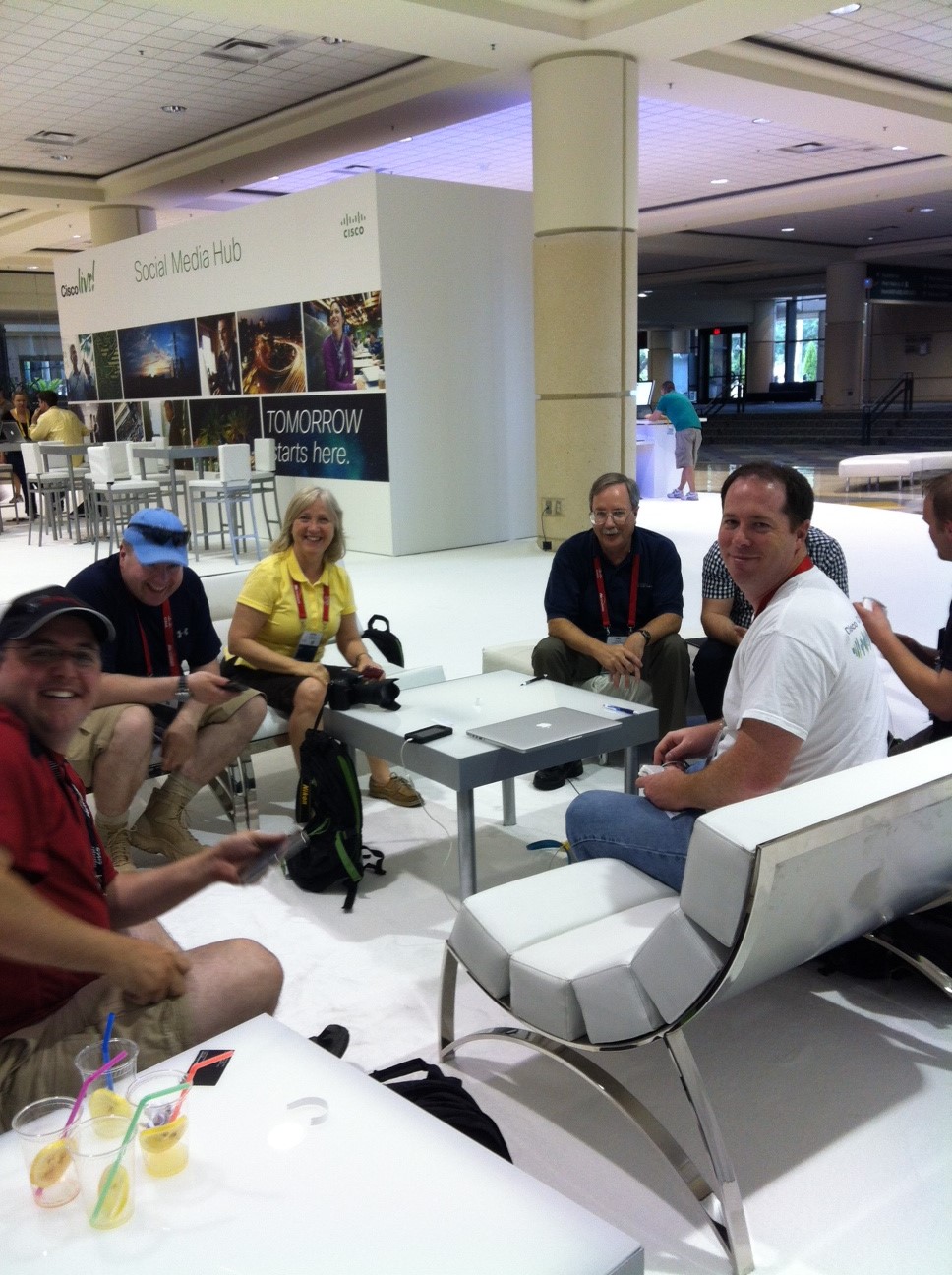
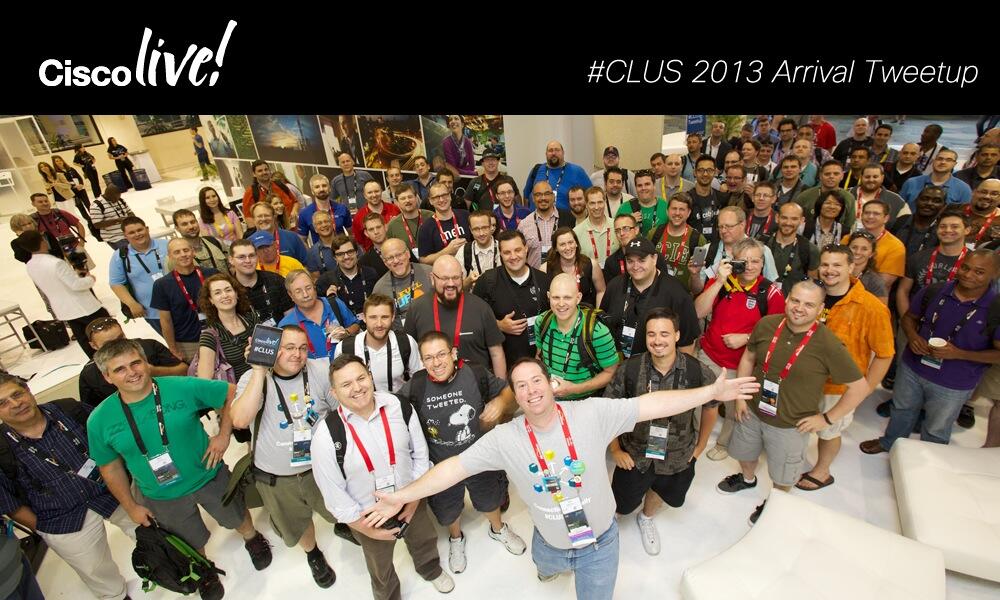
Meeting up with my fellow tweeters and bloggers at Cisco Live always makes the week, and this year was no exception.  The Cisco Social Media team, led by Kathleen Mudge did a phenomenal job keeping all us social media addicts happy with comfy sofas, snacks, and timely answers to any questions we came up with along the way.

The sessions and events were also quite excellent and rather than bore you with a long narration, I think it’s a good time to share some photos.

An entire week of technical discussions with fellow nerds, yes please.

photo 3

And how about these awesome faces?

  photo 1

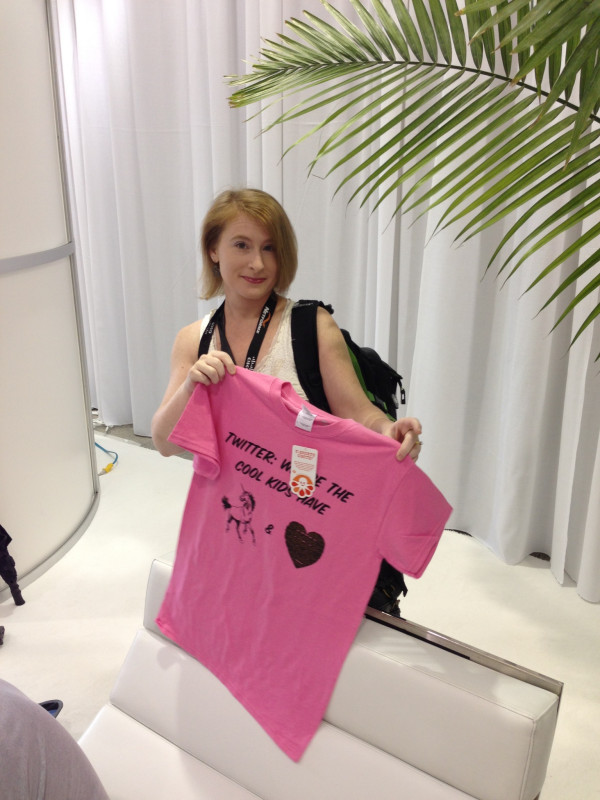
We twitterers even had a shirt this year, obviously I was not a fan of the color.

2photo 2

There were some pretty amazing speakers, many of them authors as well, here’s one of my personal favorites.

3photo 4

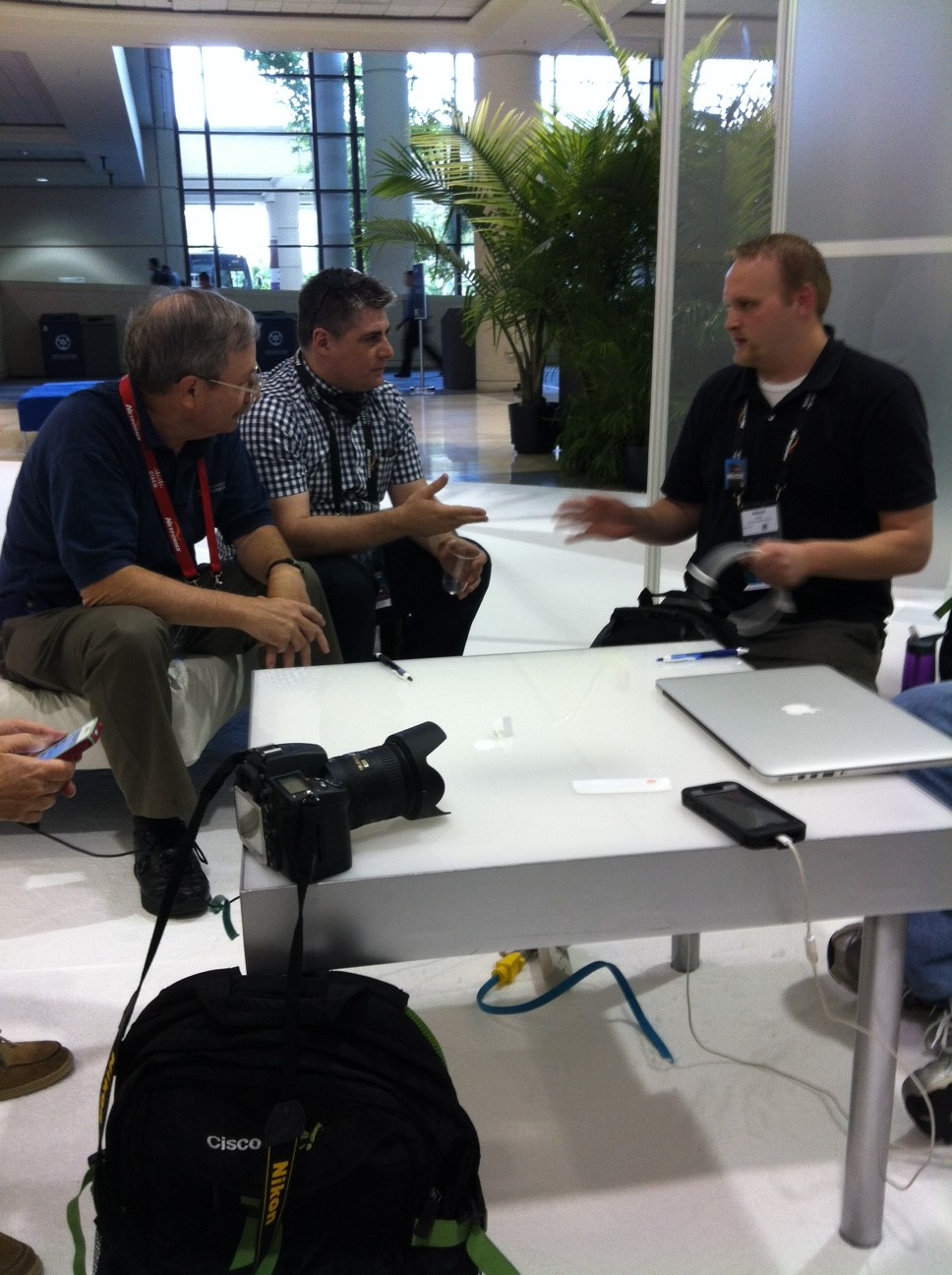
And intense technical discussions were definitely the order of the day, every day.

3photo 3

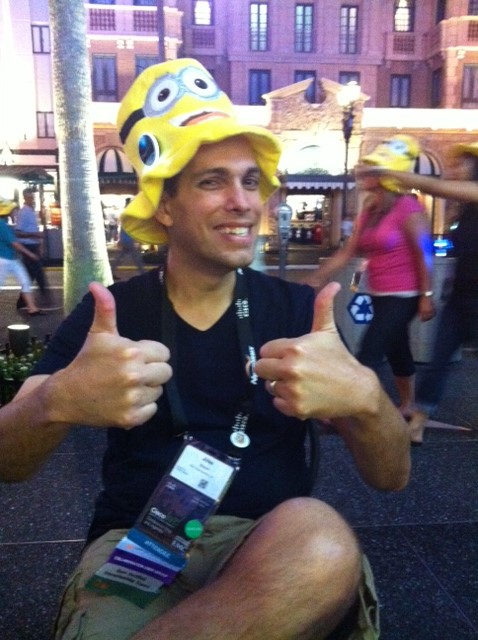
The Customer Appreciation Event at Universal Studios got two thumbs up from this voice guy (and everyone else!)

4photo 4

By the end of the week, the exhaustion starts to show. But we love it…

5photo 4

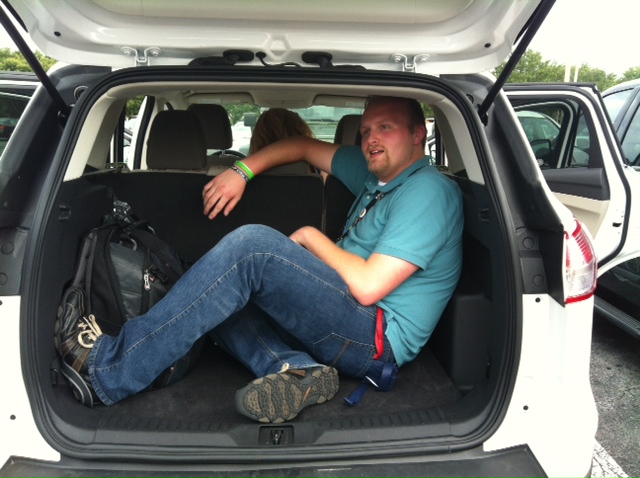
Finally, since this was Ed’s first Cisco Live event, he got to ride in style.

4photo 3

Wanna read more about Cisco Live 2013?  I recommend these posts as well:

Ethan Banks

Tom Hollingsworth

Greg Ferro

A very special thanks to all of you on twitter who make working in networking just that much more awesome!

BNiDe8dCAAAMyoA.jpg large

Bonus that will make your day: Members of the Packet Pushers singing Living on a Prayer, you know you want to click this link

Published 7/01/2013

The analog mixup…

While it is perfectly acceptable to have a shared line that is assigned to both a voip phone and an analog device, there is no guarantee things won’t get wonky.*  Let me demonstrate with a recent example I came across.

Users were reporting that occasionally when calling an extension they would get fast busy.  A quick look up in CUCM showed that the directory number was assigned to several phones and two ATAs. Cue huge sigh.  For those not familiar, ATAs all provide the excruciating pains of troubleshooting analog, in a tiny, fits-in-a-bread-box, device.

Immediately suspecting one of the ATAs, each connected to a classic 5.8 GHz cordless analog phone, I did a quick check to be sure the tiny boxes of evil darkness (TBEDs?) were registered. After confirming ports on both ATA devices were up basic settings in check, I decided my time would be best served with some log file collection.

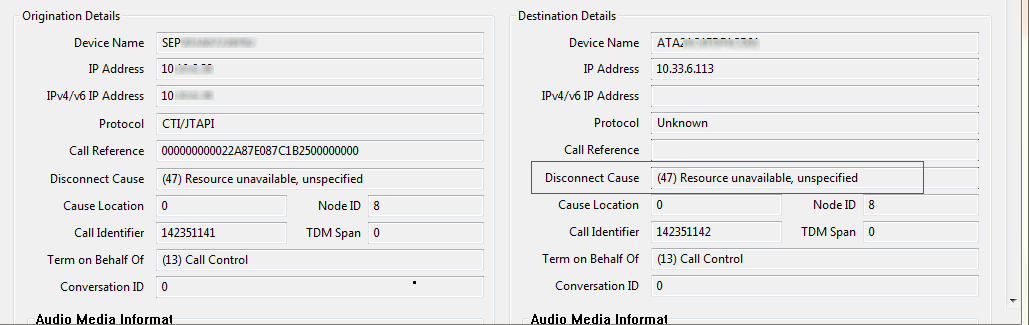
For those who find themselves needing to examine CUCM trace files, I highly recommend Translator X.  It’s free, easy to use, and super helpful.  After looking through the Call Manager trace file results in Translator X, I could see clearly that each time the busy occurred, the call had been sent to one specific ATA, and logs showed a corresponding Disconnect Cause of “(47) Resource unavailable, unspecified.”

ATA

“Unspecified.” Yep, vague error messages are my favorite. Not able to find anything tangible in the CUCM configuration, I opted for an onsite visit.

My complicated troubleshooting plan was to just unplug the troublesome ATA and let the good times ring in.  After locating and confirming the MAC address of the ATA, I pulled the plug.  Like any good network/voice engineer, I started to make a test call to confirm whether I had indeed fixed the situation without breaking anything else – an art form we constantly strive to perfect.  Fully expecting that all would be well, I was quite disappointed when greeted once again by a fast busy.

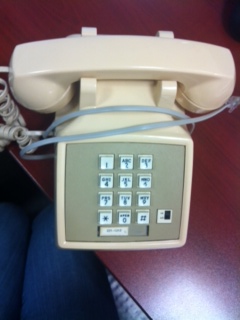
Time to pull out Tippy.

photo1

Tippy, (yes, a reference to tip and ring, I am still that much a voice geek), happens to be my reliable test analog phone and every one should have a Tippy.  Reliable test equipment will save yourself time and sanity, and you should always be weary of results from equipment you haven’t base-lined.

Since Tippy and I go way back, I knew after making a successful test call with Tippy plugged into the ATA, that something was wrong with the cordless analog phone itself, or possibly in its wiring back to the closet.

I then found that plugging Tippy into the wall jack of the problem phone resulted in a successful call as well, so my conclusion was that the cordless phone at hand had shuffled off its mortal coil. I opted for moving the other cordless phone to replace the bad one, the models being identical and the other one being in a location that wasn’t being utilized.

Swap complete, time to test again, and still getting a fast busy. A girl cannot catch a break.

On a hunch, I decide to press the handset locator button on the cordless phone base station.  Oddly, the handset on the charger station in front of me was not the handset that was beeping.

Then it hit me, the users had mixed up the handsets.

The base station didn’t have a working handset, but was still alive and would take the call the ATA presented it, but the handset couldn’t communicate because it was around the corner, down the hall, and IN THE OTHER ROOM!

Like I said, wonky.

*Yes, that is in fact a technical term, just ask any voice (or former voice) engineer.  

Bonus material:
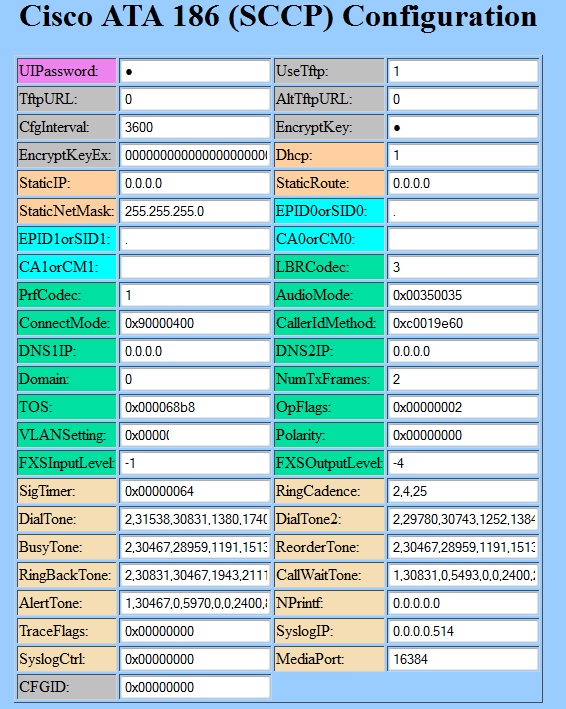
If you have never had to manage an ATA, (lucky you), you might not know that typically you can reach the ATA device via a web page by entering ://[the ip address]/dev.  You will see a web gui that I am certain was coded by a developer with absolutely no sense of web design. Seriously, not even a bit.

ATAConfig

Published 6/19/2013

Cisco Live blog post – the Clip Show Edition

So you know those episodes of your favorite TV shows that are nothing but clips of other episodes? Well, think of this particular post as one of those cheater episodes. As much as I love Cisco Live, all the good stuff has already been written up and now I will show you just where that good stuff lives.

First up is Jeff Fry’s blog which I absolutely love, not only because it’s a great wealth of information on Cisco Live, but also because he always has at least one post that contains a map. Being a directionally challenged individual, this is one post I highly recommend.  Jeff also has several other great posts on Cisco Live 2013 so be sure to check them out as well, and while you’re there be sure to check out his fabulous technical posts on pretty much any topic networking related, you won’t be sorry you did.

My second hat tip goes to Tom who happens to be the keeper of the Great Twitter List of Awesomeness for Cisco Live 2013.   Tom has several great posts on what to expect from the event in general and useful info on the annual Tweet Up.  And, of course, while you are hanging out on Tom’s site, don’t forget to check out his post on the infamous Cisco Live 2011 Tom Tramp Stamp, which includes a link at the bottom of the post to said tattoo. That’s just good entertainment right there.

Next up is Teren’s blog which includes info on the CAE, Disney discounts for Cisco Live attenders, and a nice post on why you should be going to Cisco Live and better yet, why your boss should support you. Teren also has posted some fantastic photos of last year’s event here so be sure to check them out if you went last year or if you just like clicking on pictures of strangers.

For more good tips on what to pack and what to expect, I recommend checking out Scott’s post and Bob McCouch’s post.  I’ve hung out with both of these guys at past Cisco Live events and the advice they give is practical and spot on.

Last, and certainly not least, if you are interested in more information about the keynotes for Cisco Live 2013, be sure to check out John’s post on the subject here.  He’s summarized the speakers and dates for you, so be sure to bookmark a link for when you are planning out your schedule.

And that’s a wrap on our tour of all things Cisco Live 2013, as you can see, Cisco Live is quite the event! Hopefully the impressive work of these bloggers makes your trip just a bit easier and certainly less overwhelming!

Published 6/11/2013

*I apologize to my blogger friends who have posted on the subject and that I have missed, please leave a link to your blog in the comments!

Where’s my RTP?

As many of my readers already know, I recently shifted gears from a being a consultant focused on voice to a being network engineer focused on…well, everything. One of the first items on my list to tackle, however, put my years of voice training to good use.

A common issue voice engineers are faced with is one way or no way audio.  As a voice consultant, those types of issues almost always ended with my saying the line “that’s a network issue, you’ll need to follow up with *those* guys” because almost always one way or no way audio is a routing issue of some sort. Of course, now that I am again one of *those* guys that gets to fix the routing issue too, that line is not quite as charming.

Many people who do not do voice everyday are not aware of the fact that the actual audio payload of a phone call is RTP traffic sent directly between the two endpoints.  This is starkly different from the call signalling, which is typically between the endpoint and the Unified Communications Manager. Given that signalling and RTP can take differing paths, you can end up with phone calls that seem like they should work but don’t, and for better or worse, the other end cannot hear you screaming in frustration.

My most recent run in with this issue involved a new VPN connection setup and users unable to hear voicemail prompts when checking messages. Complicating the issue was the fact that “normal” phone calls – phone calls between the remote and main site, were working just fine. A closer look, however, easily explained why one was working and not the other.

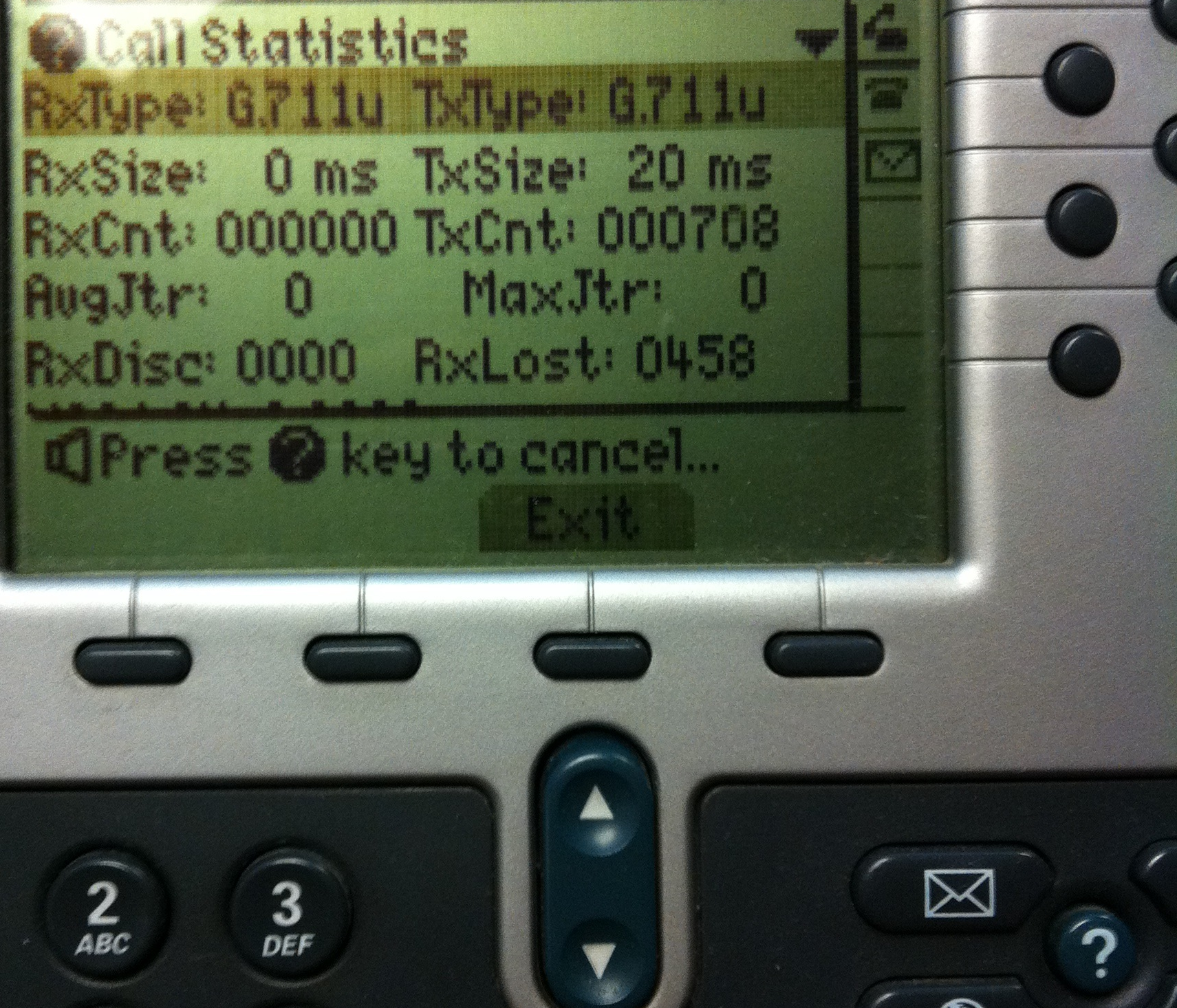
A good place to start on a no audio issue like this is to make use of the Question Mark button located on most Cisco phones. In this case I was dealing with a 7960 (don’t judge me) and just clicking the Question Mark button twice pulled up stats for the conversation.  Most notably, I could see that the transmit packets were incrementing, but the receive packets were not*. Newer phone models like the 69/8900 series hide this information in some other menu which isn’t entirely obvious, but just check the documentation to see how to pull up phone call stats. You can see in the photo below the type of useful information you can get – note the Question Mark key is in the bottom right of the picture.

phonephoto

Having confirmed that the phone thought it was sending RTP packets, but clearly not receiving them, I decided it was a good time for a packet capture**. One of the things I love about Wireshark is how easy tracking down RTP conversations is in a .pcap file. To take the capture, simply plug into data port on the phone, launch Wireshark, start the capture, and make your test call. Then stop the capture, click on Telephony -> RTP -> Display All Streams. You will see the RTP conversations in the capture, choose the one you want, and then click Prepare a Filter to view just the RTP packets you are looking for. Be sure to wave your hand and mumble “these are the RTP packets you are looking for” while you do.

Once I had my filter applied I could see the two IP addresses that the RTP was attempting to flow between, one being the phone ip address and the other being the ip address of a secondary voicemail server, not located at the main site that the remote phones were typically calling.  I then tried to telnet to that voicemail server on port 5000 to monitor the voicemail port traffic but my connection was unsuccessful, reiterating that I had a routing issue somewhere.***

Capture

Now the conclusion to this episode is not nearly as exciting as the troubleshooting process, adding a route to the VPN configuration to the correct subnet was all that was required, but it serves as a great example of when a voice issue isn’t actually a voice issue, no matter how much it looks like one.

Published 5/25/2013

*Another item to rule out on these types of remote site setups is the possibility of a codec mismatch.  The default between sites is typically g729 and not all voicemail servers can tolerate that.  Using the Question Mark key can show you the codec that is being used and then you can investigate whether or not the proper transcoder resources are in place.

**Pretty much anytime is a good time for a packet capture.

***I did a write up on how you can monitor voice ports with Unity Connection 8.6 using telnet here

Interop 2013 – HP’s UC SDN Application for Lync

Thanks to HP Networking* I got to attend Interop last week and it was quite the experience.  Besides being inundated with tons of cool technology, ample opportunities to chat with some incredible engineers, and some really good food, I actually saw a proof of concept SDN application for voice that was definitely intriguing.

Now I’m one of those who has heard the phrase SDN enough times in the last few months that I often want force-choke anyone who dare whispers anything about network programmability in my presence.  Up until recently I have focused pretty exclusively on voice, and while route/switch engineers are wondering if this SDN thing is really going to affect them, I guarantee it isn’t even a blip on the radar for most voice engineers.

That’s why this UC&C SDN Application for Lync from HP was interesting.  You see, HP has taken SDN and paired it with Lync – now the SDN controller finds out from Lync about the endpoints and how much bandwidth a dynamic desktop sharing session needs, and then marks packets and ensures they are treated properly along their network journey. Sort of reminds me of RSVP but without all the heavy configuration. It also gets the bonus of receiving stats on the flow for quality reporting.

There’s a decent demo here:  http://www.youtube.com/watch?v=byMtYpmh1xQ

I was going to write up how this solution was working, but I found this post which already does an excellent job of that *and* has a nice pretty pictures: http://www.nojitter.com/post/240153039/hp-and-microsoft-demo-openflowlync-applicationsoptimized-network

Now not being a Lync guru, I am not sure how helpful those that are Lync gurus think this solution will be, but the proof of concept gets me thinking about what SDN might look like for all our other latency sensitive voice applications. To me it looks like voice engineers might have to pay attention to SDN after all.

*Disclosure: HP paid my expenses to Interop and arranged for me as a blogger to see presentations, demos, and experts on their products. While they did an excellent job providing information and resources for their invited bloggers, they didn’t pay for me to say nice things about them. Opinions are of course my own because I am far too stubborn to have it any other way.


Published 05/13/2013

Unity Connection tidbits: forwarding voicemails by extension

Here’s a question I get asked quite often, “how do I forward a voicemail to someone by extension instead of by name?”

As it turns out, most people would rather have their fingernails pulled out one by one with a set of rusty pliers than to have to type in the first and/or last name of a user into a phone keypad.

Unity Connection does make a provision for extension dialing instead of named dialing when addressing/forwarding messages, but it is a global setting, so everyone will need be onboard*. I highly doubt this will be an issue…

Just mosey on over to System Settings > Advanced > Conversations and look for Disable Spelled Name Searches**. Should look something like this:

Disable Spelled Name Searches

Just check the box and you’re done!***  Yay you!

*See the comments section, Mike was kind enough to point out how to do this on an individual basis.  I’ve never been asked to do this for a single person, but it’s good to know it can be done.

**I desperately wish they would have called it something like Forward Voicemails by Extension (I know, clever, right?) to make it easier to find, but alas, now you know…

***Note this is not a feature you get to use with voice recognition, see documentation here: http://www.cisco.com/en/US/docs/voice_ip_comm/connection/8x/gui_reference/guide/8xcucgrg110.html#wp1168437

Published 4/10/2013

Your name please…

One of the woes we voice engineers deal with on nearly every deployment is the compelling need users have to not only see the calling number of the individual bothering them via telephone, but also the name.  I assume this is so they can add the names of the really annoying callers to a list that gets mailed to the North Pole every December.  (hey, those telemarketers deserve that coal they get in their stockings, no question about it…)

While every deployment is different and I am far too lazy to outline every possible configuration for calling name to show up for users, I will highlight the importance of the command set below being in the router configuration if you are dealing with H323 gateways, calling name is being delivered in the Facility IE, and your inbound calling name isn’t being displayed on the phone*:

voice service voip
h323
h225 display-ie ccm-compatible

How will you know you need this command set?

Well, let’s say you’ve done your due diligence and confirmed with the carrier that calling name *is* being sent. Please don’t skip this step, you will beat your head against your desk until unconscious when you find you’ve been troubleshooting a calling name issue for days and the customer never ordered the service on the line.

Let’s say you have also confirmed, with my favorite debug of all time debug isdn q931, that you are seeing calling name in the debug.  In some cases, like the one we are discussing, calling name may be coming in the Facility IE, and you should see it clearly in the debug**.  It will look something like this:

RX <- FACILITY pd = 8  callref = 0x018C
Facility i = 0x9F8B0100A117020101020100800F41524E4F4C4420414D592020202020
Protocol Profile =  Networking Extensions
0xA117020101020100800F41524E4F4C4420414D592020202020
Component = Invoke component
Invoke Id = 1
Operation = CallingName
Name Presentation Allowed Extended
Name = AMY

Typically if you have gotten this far and your inbound calling name is still not showing, you are nearly there.  Adding the aforementioned h225 display-ie ccm-compatible command should do the trick.

Note that if you are dealing with a gateway running really old IOS, you may not see this command available.  You’ve got to be on at least version 12.4(20)T or else you will be one sad panda. Once you enter these commands, you’ll not only see calling name in the debugs, but your customer should see it on the phone as well and think you are a miracle worker, as we voice engineers often are.

*If you love yourself you’ll be dealing with H323 voice gateways and not MGCP. MGCP, however, does have some nifty check boxes to get  Facility IE calling name working – however, that remains material for another blog post.

**If you don’t see calling name in the debug, then you likely need to enter a few commands to make the Facility IE delivery work. Your serial interface should look something like this:

interface Serial0/0/0:23
no ip address
encapsulation hdlc
isdn switch-type primary-ni
isdn incoming-voice voice
isdn supp-service name calling
isdn outgoing display-ie

Try the above commands if you are seeing something like the debug output below. Also be certain that your switch type supports Facility IE, not all switch types do. On a related note, switch type must be agreed upon between yourself and the carrier, don’t believe you can change one end and the other end will just work. It’s voice mind you, rarely do things just *work*…

Facility i = 0x9F8B0100A11D02010106042B0C0900801254656C65547261636B204F7574626F756E64
Protocol Profile =  Networking Extensions
0xA11D02010106042B0C0900801254656C65547261636B204F7574626F756E64
Component = Invoke component, Unsupported operation

***Additional FWIW – I recently did an upgrade from 6.1 to 8.6 and inbound calling name wasn’t a problem on 6.1 without the ccm-compatible command, but after the upgrade calling name only worked with this command added. I also found this link from 2010 to helpful when troubleshooting this type of issue: https://supportforums.cisco.com/docs/DOC-8873

Published March 3/26/2013

You old softie…

If you already know how to add a softkey template to a 3905, 8961, 9951 running as a SIP phones, you get a gold star, a free pass, and an opportunity to move along, there’s really nothing to see here.

But, if you’re like me, a voice engineer that spends a good deal of time supporting older releases and older models of phones, here’s something you might not have run into as of yet.

To configure a softkey template on one of these newer phones running as SIP, your old ways are useless and will leave you feeling puzzled and shunned by devices that should obey your every whim.

Why is this?  Well, even though you can still apply a Softkey Template on the phone configuration page of these new SIP phones, the device will just ignore it, much like an insolent teenager ignores a parent telling them to get a hair cut or turn that music down.

So what’s the deal?

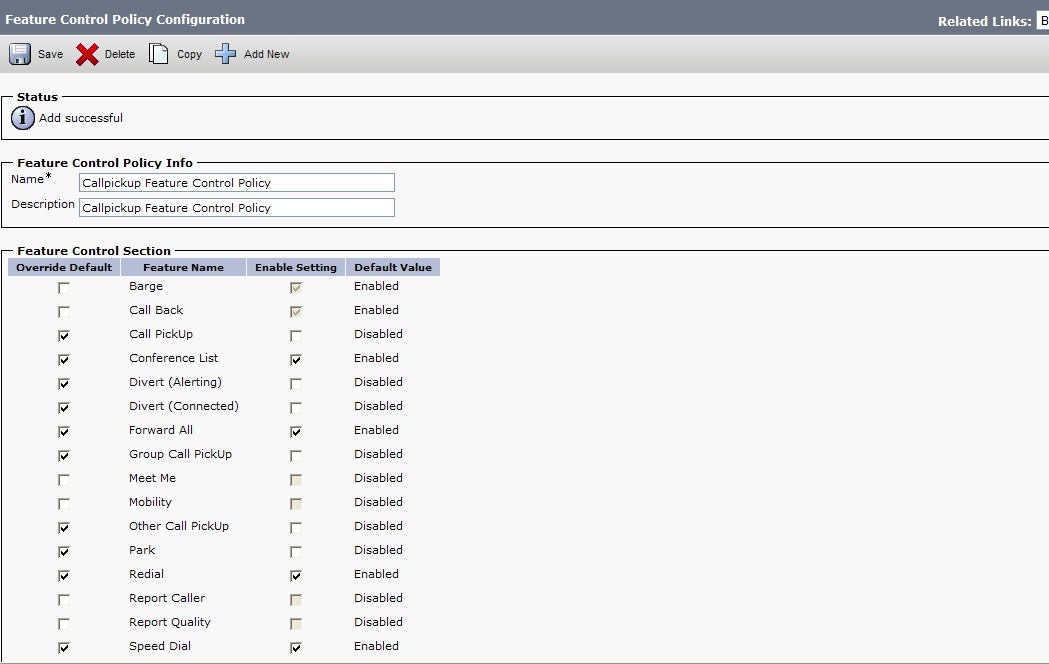
Let me introduce you to the concept of a Feature Control Policy.  A Feature Control Policy allows you to select options that you are traditionally used to defining on a softkey template, but because everyone *loves* change, you now get to define them here – in the place nobody bothered to tell you about.

To create a Feature Control Policy, go to Device -> Device Settings -> Feature Control Policy and Add New.

Yours will look something like this:

Only yours will be wrong if it looks like this.

You see, it isn’t enough that this process changed entirely from the old way of doing it, BUT, the process has one more trick for you to overcome.  Just checking the Enable Setting box for the feature you want to show up on your phone doesn’t cut it.  You gotta go that extra step and check the Override Default box for your option as well.  Why?  Because the interface designers have a dastardly sense of humor is my guess.  Whatever the reason, check the column on the left and the column on the right for your desired feature, otherwise the results will be rather disappointing.

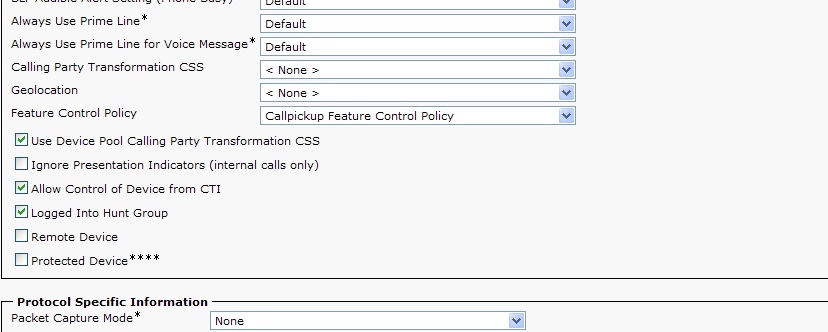
To apply this beautiful gem of a Feature Control Policy you just created, you need to assign it to the phone. You can do so on the phone configuration page. Be sure to go ahead and reset your device.

So that’s it. Note that there is no re-ordering of buttons in this brave new world.  Your button order is predetermined and no you cannot bribe it to display otherwise, no matter how many beers are offered to the networking gods.

Published 11/13/2012