Hey, voice gateway, that’s *my* call!

It’s not often that people ask me to keep calls from being answered by a voice gateway, but recently I got privilege of addressing just that issue.

The scenario here is not all that common, but if you should find yourself in similar jam, you are going to want to send me candy and flowers for this tip.

Say that you have a voice gateway and the only reason it’s there is so that some archaic fax machine can send and receive (die, fax, die!!), and so that outgoing user 911 calls are routed out the local PSTN.

Say that for whatever reason, an FXS card was not used for the fax machine, but instead, wiring wizards split off the PSTN connection at the demarc so currently both the router and the FAX machine share dial-tone from the same line.

Say that you determine not to question the setup so much as focus on making sure that when calls come in from the PSTN, the FAX machine takes the call and the router just sits there, pretending like nothing’s going on.

Here is the magical command you need to make this happen:

voice-port 0/0/3 (or whatever voice-port your PSTN connection is cabled to)
ring number 10

This sweet little command tells the router not to pick up when the call rings in initially.   This gives the FAX machine plenty of time to jump in there and take the call without the router interference.

Granted you won’t see this everyday. If you’re lucky you may never see it.  I, on the other hand, need to have a long talk with karma…

Be sure to check out this support forum, which led me to the above solution: https://learningnetwork.cisco.com/thread/9357

Published 03/26/2012

The Sting of Rejection: Part 2

We left off the last episode with one registered conference bridge and one snarky MGCP port touting its Registration Rejected message as a badge of honor.

So what makes MGCP ports unhappy enough to reject all caring efforts of devoted voice engineers?

A few things you should check first:

Is MGCP configured and running on your gateway? Sounds simple enough, but easy to miss the actual “turning it on” step.

In this particular case, I was configuring a single port on an otherwise h323 gateway as an MGCP port, so my configuration looked something like this:

mgcp
mgcp call-agent 192.168.1.10 service-type mgcp version 0.1
ccm-manager fallback-mgcp
ccm-manager redundant-host 192.168.1.11
dial-peer voice 10 pots
     description MY MGCP PORT
     service mgcpapp
     destination-pattern 7777
     port 0/2/0
application
     global
          service alternate default

The above configuration allows not only for port 0/2/0 to be controlled via MGCP, but also allows the port to failover to h323 when in SRST mode.

So once you’ve checked the gateway configuration and everything looks kosher, you can move onto checking the CUCM piece of the puzzle.  There are (at least) two common errors when it comes to MGCP port configuration.  One, and by far the most common, is to get the device name wrong.

Easiest way to check this is to do a #show ccm-manager on the gateway and see what is listed as the device name in the output . Go ahead and copy and paste this into CUCM to be sure you have it correct. Your device name will look like mygateway@mysitename.com if the domain name is set. This needs to be precise in CUCM or the gateway won’t register – it would be like calling your new girlfriend by your old girlfriend’s name. Hostile doesn’t begin to describe it.

The other most common mistake is to pick the wrong module, card type, and/or slot for your gateway in CUCM.

The best way to ensure you are picking the right module, card type, and slot for your gateway from the CUCM drop-down menus is to do a #show diag on the router. This will show you the part number and slot you should be picking.

If your card is a VIC3-4FXS, selecting a VIC-4FXS in CUCM is not the same thing. Extending the previous analogy, saying your girlfriend has blue eyes when they are really green, will not help your cause. And in that example, the results may be fatal.  With CUCM however, you will likely be greeted with a Registration Rejected message and a raspberry blown in your general direction should you err in your selection.

Here’s an example of what you will be looking at, be sure to confirm part number and location with your router output:

MGCP module selection

On this particular brain-dead day, I had managed not to make either of these mistakes but was still getting a Registration Rejected error. Troubleshooting finally revealed I had made two very bad assumptions.  One- I assumed that the IP address CUCM was seeing for the port on the gateway was reflective of connectivity to that IP address.  Two- I assumed the networking had been done before the voice person was called in.  In hindsight, both of these assumptions were really very silly.

If you haven’t configured an MGCP port before, CUCM shows the IP address of the port after it tries to initially register.  Do not make my mistake and assume this means CUCM can actually reach that ip address.  Logs confirmed that, since I had not bound MGCP to any particular interface, MGCP was sending messages to CUCM which included the highest configured IP address on the router.  Just because CUCM knew about this address did not in fact mean that it was actually reachable.

Once I was issued my clue card, I easily confirmed with an unsuccessful set of pings – sourced from IP address CUCM had reported seeing- that indeed connectivity did not exist between the two devices.

The solution was simple enough – bind MGCP to an interface that could actually reach CUCM and voilà – instantly registered MGCP port.  I will point out that actually fixing the routing is an even better solution, but unfortunately outside my scope on this project, so second best had to do.

Here’s what the fix looked like:

mgcp bind control source-interface GigabitEthernet0/1
mgcp bind media source-interface GigabitEthernet0/1

So there you have it – many more slow days like this and my blog entries will practically write themselves!

Publish date 02/24/2012

The sting of rejection: Part 1


Ever have one of *those* days where you just aren’t on your game?  Usually we try to keep those days to ourselves and hope no one is noticing, but I’ll share a couple of pieces of one of my brain dead days in hopes that someone gets a good chuckle, that someone learns something, and that *I* never, ever, make this particular mistake again.

So there were two tasks remaining to complete my voice gateway setup: configure local conferencing and configure a single MGCP port on the router – in this case on a 2800 series.  Let me just preface this by saying this same setup had been done for approximately 20 other sites.  Imagine my surprise when neither the conference bridge nor the MGCP port registered. This blog entry will focus on the conferencing issue and mayhem that ensues when you just can’t see what it is you’ve done wrong.

There are a number of steps to creating a conference bridge on an IOS voice gateway.  The router configuration is going to look something like this:

dspfarm
dsp services dspfarm
sccp local GigabitEthernet0/0.1
sccp ccm 192.168.1.11 identifier 1 priority 1 version 6.0
sccp ccm 192.168.1.10 identifier 2 priority 2 version 6.0
sccp
sccp ccm group 1
bind interface GigabitEthernet0/0.1
associate ccm 1 priority 1
associate ccm 2 priority 2
associate profile 1 register my-Conf
dspfarm profile 1 conference
codec g711ulaw
codec g711alaw
codec g729ar8
codec g729abr8
codec g729r8
codec g729br8
maximum sessions 3
associate application SCCP

Once you’ve done this, you just need to add the conference bridge in Call Manager and it’ll register.  In theory. And in practice – if you do it right.  But I hadn’t.  My bridge was a bridge to nowhere – status Rejected. <cue sad violin music>

If you find yourself in a similar situation, there are several things you should check right out of the gate. Or should that be gateway?  But I digress.

Is sccp running on the router?

Enter no sccp, then sccp to confirm.

Is the dspfarm profile active?

Enter dspfarm profile 1 conference, then do a no shut.

Is the name of the conference resource correct on the router and in CUCM? In our example above it’s my-Conf, that *exact* name should be entered in CUCM. No wiggle room in this one – copy and paste it from the router to be sure.

And here’s the kicker.  At least what kicked me a few times over:

Is the conference bridge type you selected correct?

When I added the bridge to CUCM, I selected Cisco IOS Conference Bridge.  Sounds like a good choice, right? Uh, no.

What you really want is Cisco IOS Enhanced Conference Bridge. Which is what had been picked the other 20 times this had been done.  But for whatever reason, I picked the former, and let me tell you, the system does not provide a handy error message that says “hey bozo, you picked the wrong bridge type.”  Although, I am sure that will make it into the latest release.

Here’s what you will likely see as options in the drop down, go ahead and make the enhanced selection, you deserve it:

If, however, you choose poorly error either due to oversight or just not knowing any better, you will a status of Rejected for the bridge. In the RTMT Application Log for the CUCM server, you will likely see this error message over and over again:

: 37326: Feb 08 06:02:00.522 UTC : %CCM_CALLMANAGER-CALLMANAGER-3-DeviceTransientConnection: Transient connection attempt. Connecting Port:0 Device name [Optional].:my-CONF Device IP address.:192.168.1.11 Protocol.:SCCP Device type. [Optional]:52 Reason Code [Optional].:3 Cluster ID:StandAloneCluster Node ID:MYCMPUB

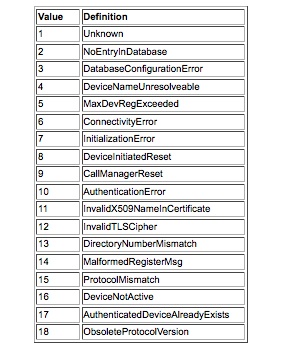
And if you are industrious enough you can track that reason code down, but it doesn’t necessarily shine much light on the situation:

So just add “Confirm the correct conference bridge type, you ninny” to your checklist when configuring a conference bridge on an IOS router.

And try very hard not to overlook this mistake the 90 times you check your configuration afterward.  It’ll save you a few hours of head scratching and an embarrassing call to TAC.

*In order for your devices to use the fabulous conference bridge you’ve just setup, be sure to assign it to the appropriate Media Resource Group and Media Resource List. Also, be certain you have assigned the MRGL to the devices or device pools that will need it.

Publish date: 02/09/2012

A Brief Interlude for OpenFlow

In this post I am going to veer away from voice-related topics ever so briefly to chime in on OpenFlow networking, hitting specifically on HP’s Open Flow’s story – why HP’s story? Well, frankly, because @hp_networking invited me to a briefing on the subject this morning and OpenFlow is freaking cool.

So what could I possibly say about OpenFlow and software defined networking that @etherealmind, @ecbacks, @ioshints, and other networking gurus haven’t already written about?  Not much. In my defense, however, those guys are blogging machines!

So my point in this post:  HP *has* an OpenFlow story.  Honestly, hadn’t caught that before – but to hear them tell it they have been working with OpenFlow founders since it started as a science experiment in someone’s basement (no, not really a basement- well, maybe a basement). Recently HP announced they were making all (well almost all) of their switches OpenFlow capable.  http://www.networkworld.com/news/2012/020212-hp-openflow-255641.html

Why does this matter? Um, because in my opinion, if these guys are doing it, the reality is OpenFlow is here and looking for a place to settle in.

Where exactly is it settling in at? Is it like the 800 pound gorilla, wherever it wants to?  I’m not so certain about that one, but the flexibility OpenFlow offers means you can toss a slew of issues at it and adapt a solution to meet the needs of the moment.  At least that’s the hype – and from what I can tell – a very plausible reality being implemented now.

If you want to get educated on OpenFlow I highly suggest checking out the resources I’ve listed below. Or take Greg out for a drink, pretty sure after one or two rounds, he’d be more than willing to talk your ear off about it.

http://etherealmind.com

http://packetpushers.net

http://ipspace.net

http://techfieldday.com/2011/openflow-symposium/

https://www.opennetworking.org/

Publish Date: 2/2/2012

Ways Contact Center Makes Me Cry – Chapter 2

A useful skill set to have as an engineer is to recognize when communication between devices has broken down.  Sometimes voice servers in particular need a kindly admin to step in and smooth over their cluster relationships; unfortunately, however, you’ll find they are just too ashamed to ask for help.

So here is a list of signs to help you tell when your UCCX servers have gone from perfectly compatible to particularly petty, but haven’t bothered to tell you about the upset.

Supervisors cannot listen to recordings.
In Cisco Agent Desktop an agent no longer see his/her call stats in the call log.
Historical reports gives an error message that no data exists for valid date ranges.
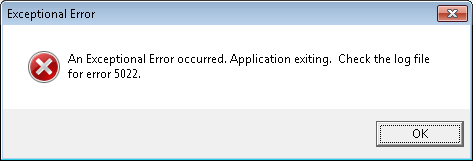
Historical reports tells you how exceptional you are with an Exceptional Error.*

If you see one or more of these symptoms, it’s likely one of your uppity UCCX servers has told the other he was taking his toys and going home. You can confirm this in one of several ways:

On versions below 8.x, check out the Data Control Center – both the Historical and Agent will likely display this gem of an error message: Error occurred while performing the operation. The cluster information and subscriber configuration does not match. The subscriber might be dropped (Please check SQL server log for more details).

On versions 8.x and above, you have a couple of options:

Go to UCCX Serviceability -> Tools -> Control Center – Network Services-> and see if the Cisco Unified CCX Database is showing as Out Of Service for either node.

OR

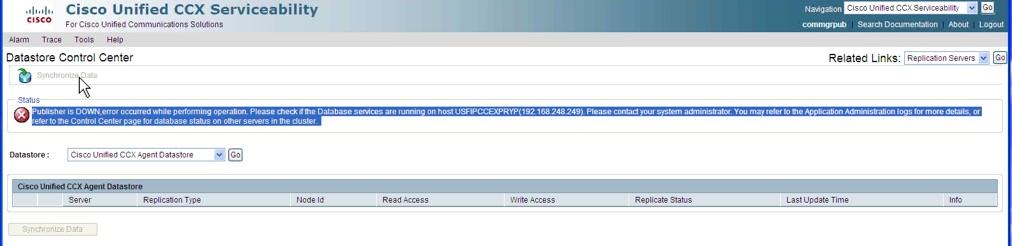
Navigate to Tools -> Database Control Center -> Replication Servers and you will likely be greeted with this happy little declaration (in case you can’t read the message below, it starts with the phrase Publisher is DOWN, happy indeed):

So what do you do if your UCCX servers are indeed giving each other the silent treatment?  Well, unfortunately, I’ve found that nothing short of rebooting cures this particular ailment.  Sure you can click that “Reset Replication” button (after hours, of course) but it’s about as effective as hitting the elevator button over and over hoping that’ll make it come faster – really people, it doesn’t help!  So just go ahead and plan that maintenance window to reboot the primary, followed by a reboot of the secondary.

But wait, there’s more!

If you noticed this issue because you are exceptional and your Historical Reports makes wild unsubstantiated claims that no data exists, just check out the solution under No Data Available in the Historical Reports in this link because there are a few more hoops to jump through:

http://www.cisco.com/en/US/products/sw/custcosw/ps1844/products_tech_note09186a0080b42524.shtml

Yep, you get to uncheck boxes and recheck boxes, and THEN reboot!  The fun just keeps on coming!

So once your surly servers get an attitude adjustment in the form of a reboot, you’ll find that they have an amazing ability to forgive each other and everyone can now rejoice in cluster harmony.

*On one of my encounters with this issue I was lucky enough to generate not just an error, but an Exceptional Error.  Still makes me laugh.  Yep, still easily amused.

Published: 01/30/2012

When license files meet Macs…

I don’t know about other voice engineers, but my Twitter stream sees a lot of activity around licensing and the fact that Dante himself might have trouble conceiving of a darker hell.  Thinking the entire process could not possibly get more difficult- I proved myself wrong with this particular adventure.

After having completed the ever-so-fun PAK registration process, I take my shiny emailed-to-me license file and attempt to load it to the server.  Right away the server flatly rejects my humble offering – using insulting phrases like “invalid” and “get a life”. (I *might* be exaggerating on that last one…)

What, pray tell, did the server dislike about my generous gift of a license key?  Honestly, no clue at the time. Most commonly the server’s adamant objection centers around the mac address of the server being incorrect in the license file.  So I performed a triple check on the mac, confirmed the correct part number ordered, and promptly pressed the TAC speed dial button on my phone.  (Indeed, I do have TAC on speed dial, a hazard of being a voice engineer…)

After several hrs of checking and rechecking the license file with one TAC engineer, then finally bringing in a fresh set of TAC engineer eyes, the source of the issue was discovered.  My problem was I had a Mac.  Of course, I never feel having a Mac is a problem, but in this case it was working against me.

You see, I was trying to upload the .lic file emailed to me – only it wasn’t exactly the file that had been sent. Outlook for Mac had “helped” me out and converted my license file to Classic Mac format.  Guess who doesn’t truly appreciate license files in anything other than Unix UTF-8 format?  Yep, pretty much any Cisco Unified voice server.

The solution was simple enough – open each .lic file and change the format from “Unicode (UTF-8), with BOM” and “Classic Mac” to “Unicode (UTF-8)” and “Unix (LF)” then re-attempt license upload. Then pour yourself a celebratory shot.

Here’s what you are looking for if doing this in TextWrangler, note this will be at the bottom of the text window:

This is what it looks like when Outlook for Mac has gotten a hold of your .lic file:

This is what it should look like when you’ve set the universe right:

For the record, there is a bug id for this issue, CSCte58452. Specifically it refers to Entourage and Unity Connection 7.1.3 – but my experience proves it’s reach extends to later versions of Outlook for Mac and of Unity Connection.

Here’s a link if you are so inclined, CCO account required: http://tools.cisco.com/Support/BugToolKit/search/getBugDetails.do?method=fetchBugDetails&bugId=CSCte58452

Publish date: 01/08/2012

Oops, missed one.

So remember this post Presence and Peace of Mind where I mentioned that there are approximately eleventy-billion steps to configure Presence clients?  Well, here’s a great example of when you’ve missed one…

Say you have a Presence client that logs in just fine.  Instant messaging works fabulously well and all things appear to be in perfect collaborating order. Except that the user cannot dial using the CUPS client.  In fact, when the user clicks the dialpad in the CUPS client- nothing happens.  Then, after a second or so, nothing continues to happen*.

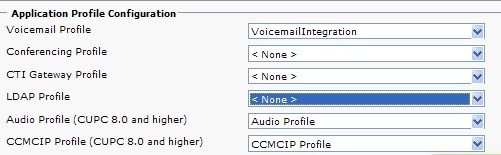
Here’s one thing you might have missed: each client needs to have a CTI Gateway Profile assigned in Presence. Just navigate to Application ->Cisco Unified Personal Communicator ->User Settings -> Find user.  Once you have clicked on your user you will see the options below:

CTI GATEWAY ASSIGN

You will need to select the CTI Gateway Profile that corresponds to the device pool of the users hard phone they are trying to control.  The format will look something like this:

[DevicePoolName]_cti_tcp_profile_synced_000.

Be sure to pick the appropriate option or funky will not just be the way your office smells when someone cooks fish for lunch in the microwave. Once you select the correct Profile, log the client off and back on, you should see that the dial pad is now responsive and calls can be successfully placed using it.

Let rejoicing begin and the collaborating commence!

*From Hitchhiker’s Guide to the Galaxy – if you haven’t read anything by Douglas Adams get thee to a bookstore forthwith, you have sorely missed out!

Publish date: 2011/12/13

Runt post: When voicemail is a dirty word

New deployments often require configuring a direct transfer to voicemail. Not too long ago @ifoam wrote this great piece on the steps involved in setting up this up: Transfer to Voicemail, which I recently referred to when I found that my configuration wasn’t working.

The article, however, confirmed my suspicions that I hadn’t missed any steps in the system configuration process, but when calls were transferred straight to the voicemail server, the user extensions weren’t coming along for the ride.

Fast forward several research minutes later to this obscurity, in particular the third entry by Randall White: https://supportforums.cisco.com/thread/2053902

Upon first reading, I found the fix too absurd to be likely, which I’m sure why Mr. White added the “no, I’m not joking” part.  The solution being proposed was the removal of the word “voicemail” from the alerting name of the CTI route point.

For those of us in voice, we’re rather familiar with what the alerting name controls, and no, it doesn’t usually have anything to do with this.  Alerting name shows up on phone displays and it’s generally one of those put-whatever-you-want-here-the-system-doesn’t-care fields. Except in this case it did. It cared a lot.

So instead of calling my CTI route point Direct To Voicemail – I changed it to Direct To VM.   Yep, that was it. I removed the offending vocabulary, quit infringing on the voicemail server’s sensitivities, and all was set right with the world.

And this is why voice engineers drink.


Publish Date: 2011/11/28

User speak madness

One of the most valuable skills an engineer can possess is the ability to translate user speak into reality.  When a user presents you with the dreaded “the network is down” complaint, an engineer has to be able to decipher that gem of ambiguity into the actual issue at hand.  This can be tricky since users often conspire to give you only half the facts, and then misrepresent the other half. This is mostly because they are bored and us banging our heads in frustration provides them some entertainment value. Okay, that may or may not represent their actual (evil) intentions, but it’s safe to say you are rarely given a true picture of the situation when tossed in the troubleshooting pit.

For example, it was reported that all calls placed from a branch office to the central site were failing.  In addition, it was reported that the branch site could not reach voicemail, a centralized resource. No other sites were reporting issues so this presented like classic WAN link failure to the branch site.  However, when I logged into the Call Manager server and saw all the branch phones registered and happy, it was time to come up with a new theory.

So what looks like WAN failure but isn’t?  In this case, a series of unsuccessful pings to the voicemail server gave me all the information I needed.  It wasn’t at all that calls were failing to from the branch site to the central site as users had reported- it was that calls were ringing those extensions and then going to voicemail – which was currently DOWN.  The fact that calls were ringing four or five times before “failing” had been left out of the reports entirely.

This got me thinking about some of other infamous “translations” I’ve encountered that have helped hone my skills with user speak and caused me to develop a nervous twitch whenever the phone rings:

Report that the wireless was down. Meant that user was trying to connect to wireless from a workstation that didn’t have a wireless card.

Report that outbound dialing to a branch was broken for all users.  Meant that user was confused by the sound of dial tone, stopped dialing, and therefore never completed the calls. 

Report that the phone system couldn’t dial an outside phone number.  Meant that user was trying to dial a number that had been disconnected for years.

Report that the fax machine no longer worked.  Meant that user moved fax machine and plugged it into a dead wall jack.

Page that the paging system is down. Page received. You can guess what this meant about the user…

Please feel free to share your amusing encounters with user speak, would love to hear them!