Review: INE Voice Bootcamp, the two week experience

So many of you regular readers have caught onto the fact that I recently attended the INE Voice Boot Camp and I know many of you are anxiously awaiting details on what the experience was like and what to expect should you decide to attend the class yourself. So let’s get to it!

First up – class structure.  This is not a class for the faint of heart. It is not the class for those who work for 4 hrs and then need a nap.  It’s the class for those of you who work an intense 12+ hrs for days in a row and still maintain some bit of mental clarity at the end of it all. Maybe not a lot of mental clarity, but some nonetheless.

Officially class start time was 9am and lectures ended by 4-5pm.  Unofficially, students came as early as 6-7am, at least that’s the rumor. I wasn’t there to verify, because as we all know, morning people are mutants. As far as the evenings went, students always stayed as late, sometimes as late as 10-11pm. Personally I need some sleep to function, so I often called it quits about 8 or 9 pm – just as my brain began to melt out my ears.

On the same subject of structure, I liked the fact that the labs, which were setup pretty much like what I am told you would encounter in the actual lab exam, were open on the weekend and accessible via VPN at all times. It was nice to go in for a few hours on the weekend and work through some of the topics that were giving me grief. Yes, that might just have been all of the topics, but not the point.

Shifting gears, let’s talk about class content. Class was a refreshing mix of lecture and lab and blessedly free from the dreaded death-by-power-point. Of course all the major topics on the blue print were covered, but one of the things I enjoyed about this class was it didn’t stop at just here’s-how-to-pass the exam.  We covered how to think critically about tasks, configurations, and design. Yes, granted, a lot of it was how-to-think-like-a-proctor, but so much more – how to be a better voice engineer overall. This appeals to the part of me who knows it’s not just about certification but about being at the top of your game as an engineer.

So what about the teacher Mark Snow? Well, other that the class consensus that he has really great hair*, I’d have to say Mark knows his stuff cold. With that being said, he didn’t spoon feed students and he didn’t just give us the answers even though that would probably at times have been easier.  He provided a great many helpful lab suggestions and methods for being successful, but I would stop short of calling them tricks or quick tips.  You aren’t going to pass the CCIE Voice lab, or any other CCIE lab with a basketful of helpful hints, it’s hard work and mastery over the topics that will get you there and Mark provided excellent guidance on how to achieve that goal.

Lastly, I’d like to give a shout out to my awesome fellow students who not only provided great feedback in the class but were also great resources to one another, and to myself especially. When working through labs, these guys were invaluable to each other when trying figure out what on earth was going wrong in a configuration that should be working and wasn’t. We’ve all been there. Some of us more so than others.

So there you have it – was it a positive experience? Absolutely! Did it get me closer to my CCIE voice? Definitely.  In fact, I really just embarked on this study quest and I feel miles ahead.  I’m really glad I went when I did, because I now know how and where to focus my study efforts, what my weakness are, what my goals should be, and how I can measure my preparedness level accurately.

So for the INE Voice boot camp experience, I’m giving it two thumbs up, awarding it 5 gold stars, clicking the Like button, marking it as a Favorite, giving it some Klout, etc…

*Yes, records will indicate that this was an actual topic of discussion at one point. And can you really make an argument against it?

**My awesome class comprised of extremely talented voice engineers: Miguel, Mike, Matthew, Justin, Trent, Mark, Israel, Vincent, and Juan. And of course, myself.  I’m pretty sure you can tell which one I am.

***In the interest of full disclosure, INE did pay for my seat in the class and my company paid my expenses, but once again I’ll point out neither paid me to say nice things about them. If the class had been horrible, trust me, I would have let you know, with of course, as much snark as I could possibly fit into one scathing review. I’m talented like that.


Published 10/29/2012

Tricks full of awesome: monitoring voicemail ports remotely

Here’s a neat trick I picked up in INE voice boot camp this week*: you can monitor Unity Connection ports from a telnet session.

Why would you want to do this?

Well, one, you are studying for the CCIE voice lab and you know that you won’t have access to the Unity Tools website to download the port monitor tool during the exam.

Two, you like cool and easy ways to do things and you think installing the port monitor tool is a terrific hassle**. I happen to fall into both categories.

Now to get this going – first be sure to turn on remote port monitoring in Unity Connection. Go to System Settings -> Advanced -> Conversations ->

Remote Port Monitor Parameter

You will see Enable Remote Port Status Monitor Output at the top if you’re in CUCM 7.x. Just check the box and enter the IP address of the router or host you will be initiating the telnet session from.

Then go to your router (or device of your preference) and issue this command:

telnet 10.10.10.10 5000 /source-int lo0 (note the IP address is the IP address of your Unity Connection server and the source-int should match the IP address you put in Unity Connection)

Here’s a nice sample of the output before I created a voicemail account for a user – you can see the caller’s extension and the voicemail pilot. You can also see the name of the voicemail port being used. Also note that when the system doesn’t find a voicemail box it plays the Opening Greeting instead.

Branch1#telnet 10.10.10.10 5000 /source-int lo0
Trying 10.10.10.10, 5000 … Open
CallData, 2, CallerId=1001, CalledId=8000, RedirectingId=, Origin=16, Reason=1, CallGuid=A409F619FAF34289B7F7092AAA6719A2, CallerName=My User, LastRedirectingId=, LastRedirectingReason=1024, PortDisplayName=PortGroup1-002
Application, 2, 1001, AttemptSignIn
State, 2, 1001, State – AttemptSignIn.cde!Dummy
State, 2, 1001, Event is [NULL]
Application, 2, 1001, PHTransfer
State, 2, 1001, State – PHTransfer.cde!LoadInfo
State, 2, 1001, Event is [TrueEvent]
Application, 2, 1001, PHGreeting
State, 2, 1001, State – PHGreeting.cde!PlayGreeting
Display, 2, 1001, Call answered if needed
Display, 2, 1001, Playing greeting for Call Handler: Opening Greeting
State, 2, 1001, Event is [HangupEvent]
State, 2, 1001, State – PHGreeting.cde!DoHangup
State, 2, 1001, Event is [HangupEvent]
Display, 2, 1001, Idle

Now here is the output after I created the voicemail box. You can see that it recognizes the user has a voicemail box and prompts the user to authenticate:

CallData, 2, CallerId=1001, CalledId=8000, RedirectingId=, Origin=16, Reason=1, CallGuid=EE22CD20CC714BF7A723D24A4153B306, CallerName=My User, LastRedirectingId=, LastRedirectingReason=1024, PortDisplayName=PortGroup1-002
Application, 2, 1001, AttemptSignIn
State, 2, 1001, State – AttemptSignIn.cde!Dummy
State, 2, 1001, Event is [NULL]
Application, 2, 1001, SubSignIn
Display, 2, 1001, Subscriber Sign-In
State, 2, 1001, State – SubSignIn.cde!AnswerPhone
State, 2, 1001, Event is [TrueEvent]
State, 2, 1001, State – SubSignIn.cde!AuthenticateUser
Application, 2, 1001, –>SubAuthenticate
State, 2, 1001, State – SubAuthenticate.cde!TryCounter
State, 2, 1001, Event is [NULL]
State, 2, 1001, State – SubAuthenticate.cde!GatherID
State, 2, 1001, Event is [FalseEvent]
State, 2, 1001, State – SubAuthenticate.cde!LoadSubscriberMinimalData
State, 2, 1001, Event is [NULL]
State, 2, 1001, State – SubAuthenticate.cde!GatherPIN
Application, 2, 1001, –>SubAuthenticatePW
State, 2, 1001, State – SubAuthenticatePW.cde!ValidatePwd
State, 2, 1001, Event is [HangupEvent]
Application, 2, 1001, <–SubAuthenticatePW
State, 2, 1001, Event is [HangupEvent]
Application, 2, 1001, <–SubAuthenticate
State, 2, 1001, Event is [HangupEvent]
Display, 2, 1001, Idle

And one final output I thought was interesting (yes I am a geek). Here is what it looks like when you enter the wrong pin, then enter the wrong ID and wrong pin when prompted again.

CallData, 2, CallerId=1001, CalledId=8000, RedirectingId=, Origin=16, Reason=1, CallGuid=8667665A30304959991818F0EE9C47B7, CallerName=My User, LastRedirectingId=, LastRedirectingReason=1024, PortDisplayName=PortGroup1-002
Application, 2, 1001, AttemptSignIn
State, 2, 1001, State – AttemptSignIn.cde!Dummy
State, 2, 1001, Event is [NULL]
Application, 2, 1001, SubSignIn
Display, 2, 1001, Subscriber Sign-In
State, 2, 1001, State – SubSignIn.cde!AnswerPhone
State, 2, 1001, Event is [TrueEvent]
State, 2, 1001, State – SubSignIn.cde!AuthenticateUser
Application, 2, 1001, –>SubAuthenticate
State, 2, 1001, State – SubAuthenticate.cde!TryCounter
State, 2, 1001, Event is [NULL]
State, 2, 1001, State – SubAuthenticate.cde!GatherID
State, 2, 1001, Event is [FalseEvent]
State, 2, 1001, State – SubAuthenticate.cde!LoadSubscriberMinimalData
State, 2, 1001, Event is [NULL]
State, 2, 1001, State – SubAuthenticate.cde!GatherPIN
Application, 2, 1001, –>SubAuthenticatePW
State, 2, 1001, State – SubAuthenticatePW.cde!ValidatePwd
Display, 2, 1001, Subscriber sign-in failed. Alias – myuser. Extension – 1001. Caller Id – 1001.
State, 2, 1001, Event is [FalseEvent]
Application, 2, 1001, <–SubAuthenticatePW
State, 2, 1001, Event is [FalseEvent]
State, 2, 1001, State – SubAuthenticate.cde!TryCounter
State, 2, 1001, Event is [NULL]
State, 2, 1001, State – SubAuthenticate.cde!GatherID
State, 2, 1001, Event is [NULL]
State, 2, 1001, State – SubAuthenticate.cde!GatherPIN
Application, 2, 1001, –>SubAuthenticatePW
State, 2, 1001, State – SubAuthenticatePW.cde!ValidatePwd
Display, 2, 1001, Subscriber sign-in failed. Alias – . Extension – – Not Available –. Caller Id – 1001.
State, 2, 1001, Event is [FalseEvent]
Application, 2, 1001, <–SubAuthenticatePW
State, 2, 1001, Event is [FalseEvent]
State, 2, 1001, State – SubAuthenticate.cde!TryCounter
State, 2, 1001, Event is [NULL]
State, 2, 1001, State – SubAuthenticate.cde!GatherID
State, 2, 1001, Event is [FalseEvent]
State, 2, 1001, State – SubAuthenticate.cde!LoadSubscriberMinimalData
State, 2, 1001, Event is [NULL]
State, 2, 1001, State – SubAuthenticate.cde!GatherPIN
Application, 2, 1001, –>SubAuthenticatePW
State, 2, 1001, State – SubAuthenticatePW.cde!ValidatePwd
Display, 2, 1001, Subscriber sign-in successful. Alias – . Extension – – Not Available -. Caller Id – 1001.
State, 2, 1001, Event is [Expired]
State, 2, 1001, State – SubAuthenticatePW.cde!ReturnExpired
State, 2, 1001, Event is [Expired]
Application, 2, 1001, <–SubAuthenticatePW
State, 2, 1001, Event is [Expired]
State, 2, 1001, State – SubAuthenticate.cde!ReturnExpired
State, 2, 1001, Event is [Expired]
Application, 2, 1001, <–SubAuthenticate
State, 2, 1001, Event is [Expired]
State, 2, 1001, State – SubSignIn.cde!AuthenticateUser_Expired
State, 2, 1001, Event is [NULL]
State, 2, 1001, State – SubSignIn.cde!RunSignInUtil
Application, 2, 1001, –>SubSignInUtil
State, 2, 1001, State – SubSignInUtil.cde!CheckAccountLocked
State, 2, 1001, Event is [FalseEvent]
State, 2, 1001, State – SubSignInUtil.cde!CheckExpiredAndNew
State, 2, 1001, Event is [NewUser]
State, 2, 1001, State – SubSignInUtil.cde!RunEnrollmentConv
Application, 2, 1001, –>SubEnrollment
State, 2, 1001, State – SubEnrollment.cde!PlayEnrollmentIntro
State, 2, 1001, Event is [TTStarEvent]
State, 2, 1001, State – SubEnrollment.cde!ReApplyRoutingRules
State, 2, 1001, Event is [NULL]
Application, 2, 1001, <–SubEnrollment
State, 2, 1001, Event is [NULL]
Application, 2, 1001, <–SubSignInUtil
State, 2, 1001, Event is [NULL]
Application, 2, 1001, AttemptSignIn
State, 2, 1001, State – AttemptSignIn.cde!Dummy
State, 2, 1001, Event is [NULL]
Application, 2, 1001, PHTransfer
State, 2, 1001, State – PHTransfer.cde!LoadInfo
State, 2, 1001, Event is [TrueEvent]
Application, 2, 1001, PHGreeting
State, 2, 1001, State – PHGreeting.cde!PlayGreeting
Display, 2, 1001, Call answered if needed
Display, 2, 1001, Playing greeting for Call Handler: Opening Greeting

*Credit for this tip goes to classmate Israel, thanks to him for bringing it to the class’s attention!

**Last time I tried to install the port monitor tool for Unity Connection on a Windows VM, it crashed the VM.  This may or may not be blamed on the tool itself, but after having to restore from snapshot, I am a bit wary of installing the tool.

How can I screw this configuration up? Let me count the ways…

In case you ever get to feeling you’re pretty darn good at your job, just go and sit a CCIE boot camp.  That’ll sober you up in no time at all.

While I may be a whiz at voice implementations, troubleshooting phones and gateways, and heaven forbid, fixing that faxing problem you’ve been having, voice boot camp has a way of taking me right back to the starting line. In other words, I have spent the week getting schooled by boot camp. But in a good way. I think.

I’m seriously amazed, and simultaneously alarmed, at how much knowledge and methodology slips away when presented with tasks in a lab exam format. Maybe it’s the sketchy requirements and time constraints, but many of the mistakes I made this week working through the labs I know (or at least desperately hope) I would not have missed in real life.  I’m a professional for goodness sake!

For your entertainment value, and of course, educational value (mostly the former), I present to you some highlights from this week’s lab blooper reel.

I can’t call out from the PSTN phone. I hear dial tone when I take the phone off hook, but I get a fast busy on all calls I try to make.  Maybe there’s some class of restriction on the phone.  Maybe the dial peers are wrong. Or maybe it’s just that it’s a PSTN phone and I should quit prefixing numbers with a 9. Duh!

Inbound calls to the phones are not working. Maybe it’s my SIP trunk.  Maybe it’s my translations and transformations for globalized call routing. Maybe it’s a codec issue. Or maybe it’s just that I created the internal extensions in a partition that I didn’t add to any calling search spaces. Duh!

This one is one of my favorites. Scratching my head, I can’t figure out why calls aren’t matching my CUCM translation pattern: 9.[1-8]……… . I count the wildcards, 9 wildcard dots just like there need to be for the dialed string. 9 wildcard dots. DOTS. DOTS! In CUCM! Yeah, those might be wildcards in IOS, but CUCM has a difference of opinion.  Maybe I should use Xs. Just like ever other translation/route/transformation pattern in CUCM ever! Duh!

I cannot make a 911 call from a branch phone.  I check the translation pattern, I check the transformation patten, I check the route pattern.  I’m looking for all the ways I could have screwed up routing the call out.  What I am not looking for is whether my MGCP gateway is still registered. Which it wasn’t. And thank you Mark Snow for not laughing out loud on that one. And while we are on the subject, why on earth would I have changed the name of my MGCP gateway??!!  That must have been the smoking crack portion of the day...

Okay, I think that’s all the embarrassment I am prepared to own up to in this episode.  You may now go about your day feeling far superior in your knowledge and troubleshooting skills.

If you’ve got some good “well, duh!” moments from class or real life, I’d love to hear them.  It’d go along way to healing my self-esteem, plus it’s always fun to laugh at the other guy.

Published 10/13/2012

Going to camp…

Today I began a two week CCIE voice boot camp with INE*.  Now, I am well aware that CCIE boot camps are really best used as finishing schools. Once you think you’re ready to sit the lab, you attend one of these and polish off any rough edges before the big day.

Well, I am not too proud to admit that I am nowhere near ready to take the exam.  But day one of camp has given me fantastic insight into the ground I still have left to cover, which spans from here to what looks to be eternity as far as I can tell.

I’m reminded of a scene from Short Circuit* where the main characters are frantically trying not to be disassembled all over the place by their pursuers and the robot announces “Strategy!” – to which the response is “what about it?” – answer: “NEED SOME!”

Yep.  That’s about the gist of it.  Clearly no CCIE exam is going to be passable unless you’ve got one seriously concrete strategy for taking an epic amount of work, methodically parsing it out, and proceeding to bang out the solutions despite intense pressure and time constraints.

I also realize I just stated the obvious- the real question is what’s the best time management strategy out there?

Today I was presented with an excellent plan- the details of which you also can get by attending an INE camp (I can’t just go around giving away their secrets for free, they’ve got to make a living as well!), but I recognize that I’m going to have to cater any strategy to the way I think and work best.

The most successful strategy is going to address my weaknesses and capitalize on my strengths.

My two greatness weaknesses when it comes to time strategy I’d sum up like this:

1. Down the rabbit hole – it’s not in my nature to let go of a problem.  If something is not functioning properly, I am inclined to work on it until it’s fixed or the cows come home. And since the cows don’t have my address, there is no dropping a task that isn’t going my way and picking it up later, it’s just rabid obsession until the solution is discovered.

This will *kill* my time in the lab. Since I’m pretty sure I can’t bring in some sort of electric shock device that will pummel me with 1.21 gigawatts if I spend too long on one task, I am going to have to practice letting go, moving on, and coming back later. Easier said than done in my world.

2. OCD, OCD, OCD. When given a list of tasks, it fills me with great joy to start from the beginning and methodically work my way down through the tasks, checking things off in a nice orderly manner.

Yeah, this won’t work for the lab.  No way the proctors are giving an exam that can be implemented going line by line.  Time to rethink how to accomplish tasks in tandem and more efficiently and let go of my love of linear propriety.

Another thing that I hadn’t really considered until it was brought up today: I won’t be using my laptop for the exam.  I know this sounds silly because we all *know* we won’t get to use our own equipment for the lab, but think about how much you are used to doing things using your own stuff. Now think about how different it’s going to be when you don’t have access to those familiar items.

I think about work sites I’ve gone to where they give you some crappy laptop to use because they don’t want you plugging into their network with a laptop that actually works. No, you get to use the laptop with none of your cool tools and awesome buttons and shortcuts. Instead you have to make do with whatever pitiful excuse of software/hardware that happens to be provided to you and still make beautiful things happen.

This drives home the point that I need to practice with a setup as close to the lab as possible.  Even then I know there will be differences, but hopefully minor enough not to throw me off my game.

But the CCIE is not all about time strategy. I think my favorite line from today’s class was when Mark Snow said that “the CCIE doesn’t make you an expert, you are an expert before you go in.”  The test just puts a stamp of approval on what you should already be to pass the exam.

Like any other certification, it should be about gaining the knowledge, not just learning to pass the test.  All the time strategies in the world aren’t going to help if you don’t have the foundational skills and theory to do the job.

**If you haven’t ever seen Short Circuit, put on your parachute pants, get out the AquaNet, and rent this movie. You will thank me for it.
*In the interest of full disclosure, INE invited me to attend this boot camp and paid for my seat, my company is paying my expenses, and neither paid for me to say nice things about them.  My opinions are mine, I’m selfish like that.

Published: 10/08/2012

Don’t Panic: upgrading Presence 8.5 to 8.6(4)

Recently, I got the pleasure of having a rather nail-biting experience upgrading from Presence 8.5 to 8.6(4). I will recount my joyful experience so all of you can point, laugh, and then confidently take on your own upgrade.

If you are planning an upgrade to CUPS 8.6(4) let me first say don’t even consider this seemingly minor upgrade without reading Tom’s post on the subject first. Go here http://networkingnerd.net/2012/07/05/upgrading-to-cisco-unified-presence-server-8-64-caveat-jabber and heed Tom’s excellent warnings and advice.

I just have a few things to add to the topic given my recent experience. One, the required .cop file acts a bit flaky* when upgrading from the version I was on, 8.5.4.10000-16, to 8.6(4).  The first server I installed it on got a “successfully installed” message immediately followed by a “.cop not found” error message. Always a good way to start, right?

Looked something like this:

08/29/2012 12:19:38  Install of ciscocm.cup.refresh_upgrade_v1.01.cop completed SUCCESSFULLY
——————————————————————–

(28609) Wed Aug 29 12:19:46 CDT 2012

install option

(28609) Wed Aug 29 12:19:46 CDT 2012
ERROR: Option file /common/download//ciscocm.cup.refresh_upgrade_v1.01.cop not found.

I promptly ssh’ed to the server, did a #show version active and confirmed the .cop was indeed hanging out where it was supposed to be.

Loading the .cop on the secondary server didn’t produce the same error as before after the “successfully installed” message, BUT this time the installation wouldn’t stop running.

I gave it about an hour, knowing the install on the primary only lasted ten minutes. Then, I took a deep breath and rebooted the server. When it came back up, the .cop file was definitely there and the services all came up. I decided now was a good time to start breathing again.

Now came the actual installation of the upgrade file on the primary server.  This took FOREVER.  Okay, really about 3 hours, but it felt much longer.  During this time the server undergoes a reboot and progress for the upgrade must be monitored via the console.  Eventually, I got the longed for “installation successful” message and the server went down for what I thought was the final reboot.

Now, you should know that during these voice server upgrades, I never choose the option to reboot and switch automatically to the new version, so imagine my surprise when the server came up with the 8.6 version active instead of my old, comfortable 8.5 version.

Confused at the server’s puzzling disregard for my authority, I started digging around to find out why this brazen box had disregarded a direct order.  As I’m looking for clues, I get a “you can’t handle the truth” message along with a “database connection failed” warning. Okay, really only the latter, but my stress level is escalating rapidly and somebody’s about to yell “code red.”  I then peek over at the console and see that the system is shutting down. Oh, okay. Sure. Why not. I obviously have no control over this process any how…

Now as you might have already guessed, the server was actually rebooting, AGAIN, and the 8.5 version once again is the operating system of choice. Okay, I wish I had known to expect that…

So cue the installation on the secondary server, which *almost* goes off without a hitch.  Apparently the so-called “non-bootable” ISO I downloaded from CCO is, in fact, very bootable.  And guess whose virtual machine was unknowingly set to boot to DVD first.  Yep, lucky me!

Reboot time came around during the upgrade process and instead of a smooth continuation of the upgrade process, I get a console screen full of “would you like to do a media check? how about a nice game of chess?”

Easy fix here, just went into VMWare management of the server, told the server to boot to BIOS, changed the boot order, crossed fingers the installation would overlook this infraction, and allowed the server to boot again.  Fortunately the installation was feeling supremely guilty for stressing me out and decided to let this one slide.  At least that’s how I took it.

The last bump I hit on this upgrade happened when switching versions on the secondary.  The primary server switch versions went picture perfect.  The secondary server, not so much.  I landed on this during the version switch:

starting cupOnL2BootInitd

And I stayed there.  One hour later, still there.  And three hours past that, well, you get the idea…

A Google search led me to bug ID CSCto83389 which, to paraphrase, says something like, hey, this file is hung, TAC can fix it from the command line, give them a call.

It’s at this point I decide to call it a night and start fresh and much less angsty in the morning.

Fortunately I awoke to what turned out to be OMG Miracle Thursday.**  When I logged into the server to get my serial number for TAC, I noticed the secondary server was no longer in version limbo-land, but had completed the switch over to version 8.6.

The services were running and all was right with the world.  There were also birds singing and a chorus of angels outside my cubicle window.***

Published 09/03/3012

*flaky – you know, the technical term for when things are wonky…

**also known as you-are-one-lucky-sob-day and holy-crap-buy-a-lottery-ticket-day

***those may have been window washers wearing white jumpsuits…

We’re off to see the Wizard…well, almost.

You the reader may have noticed a lack of Unity posts in my blog stream.  That’s likely because most of my encounters with Unity involve a great deal of expletives not to be repeated even in impolite company, and quite frankly, the nightmares of my adventures still haunt me.

But here’s one episode involving only minor cursing and if you are encountering this issue, you will once again want to send me flowers and offer to wash my car in gratitude.

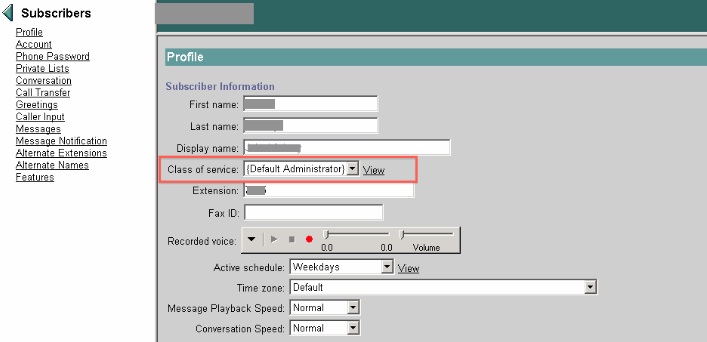
So, say you are a Unity administrator and you have hired an eager young engineer that has naively agreed to take on your administrative voicemail responsibilities.  You, snickering the entire time, happily launch the Unity web interface and proceed to assign the Default Administrator class of service to your young Jedi’s voicemail account.

Just as you press enter and begin to feel the burdensome weight of responsibility lifting off your tired, hunched shoulders, you are greeted with this party pooper.

Determined not to be dissuaded, you do like every other time things do not cooperate from the Unity web interface, you proceed to log into the Unity box as the end-all-be-all Unity Administrator account – with all the rights and permissions the great and powerful Permissions Wizard bestowed upon thee at time of install.

But you find that even the preeminent Unity Administrator is greeted with the same darned* message.  Typically one would be tempted to re-run the Permissions Wizard at this point in the troubleshooting process, and I totally understand that instinct.  If you haven’t dealt with Unity much, often times its administrative accounts mysteriously lose the permissions required for Unity to chug along at its assigned tasks.  Unity accounts somehow fall unknowingly into a Bermuda triangle where they are subject to losing attributes that you *know* were previously assigned.  There is no logical explanation for their disappearance, but looking behind the curtain and consulting the great and powerful Permissions Wizard often sets the accounts straight and returns order to the universe. And you get a shiny pair of red shoes**.

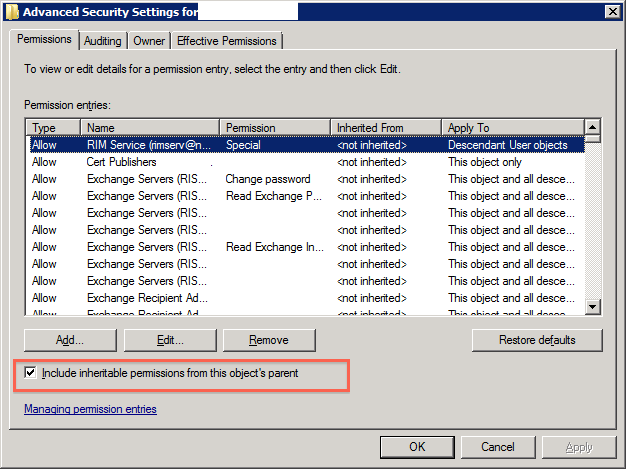
But, before you follow the yellow brick road off to the Wizard, go ahead and open in Active Directory the account of the user you are trying to add the Default Administrator class of service.  Yes, I know this may require talking to one of *those* server guys, but sometimes it’s a necessary evil.

Check the Permission tab on the user and see if the Include inheritable permissions from this object’s parent box is checked:

You see, this has to be checked not only on the account of the person attempting to change the class of service to Default Administrator, but it also needs to be checked on the account of the person you want to shirk your Unity administrative tasks onto.

Once that box is checked, you should find assigning the class of service no longer generates the error, and you are free to take your vacation and leave the new guy holding the bag.

*yes, this is a family-friendly blog, so yes, that response has been modified to reflect it

**only if you are red-headed, female, and go shoe shopping on your way home from work

Published: 07/25/2012

Ways Contact Center Makes Me Cry, Chapter 3

Today’s troubleshooting episode is once again sponsored by UCCX and its numerous ways to bring grown engineers to their knees in despair.  That might be a slight overstatement, but only by a smidge.

Quick summary of the scenario: an established agent needs to move to a new desk and take calls from the new location temporarily.  I know what you are thinking, easy cheesy – IT unplugs her phone, totes it over to the new location, installs CAD on the new workstation, plugs everything in correctly, and leaves. User just shows up, logs in, and everything *works* – mission accomplished. IT is *that* good.

Yeah, that’s not what happened.

What if, for whatever perfectly legitimate reason that completely boggles the mind of any sane administrator, the user needs to have a brand new extension and a brand new phone added to this process.  Still pretty easy, right?  Well, kind of.

Being the diligent engineer you are, you remember to disassociate the user with her old phone, associate her with her new phone and extension- also selecting her new directory number for her UCCX extension in User Management. You even remember to add the new phone to the rmuser Application User to avoid those pesky JTAPI errors. Then you go ahead and reset the new phone a couple of times just for good measure.

You check resources in UCCX and you see the fruits of your awesome work reflected in the updated extension now showing for said user. You call the user and have her log in, expecting accolades and words of supreme gratitude and instead you are confronted with this beautiful piece of snark, beginning with the phrase The specified extension is not associated with the ID:

You promptly check with your system administrator as instructed and report back to yourself that you did follow the procedure for configuring an agent’s phone and UCCX can bite it.

Once out of tantrum state, here’s a more constructive approach to resolving this particular issue which I have seen more than a few times now:

Go ahead and check one more time, confirm that you really are seeing the updated extension in UCCX.  I know, I know, of course you did this right, but the first time you don’t check, it’ll be something that simple that gets you.

Then, in Cisco Desktop Administrator, run a resync of users.  Instructions vary on this one depending on the version. I can tell you that for the version in this little story, 7.0(1)Build168, the instructions are this:

1.       RDP/VNC to the UCCX server
2.       Go to Start> Programs> Cisco> Desktop> Admin
3.       Click on “Call Center1”
4.       Then go to Setup> “Synchronize Directory services”

You can perform these steps during production hours, but as always, proceed with caution if you have a lot of users or a server that is already overtaxed.  Please don’t tell TAC that Amy said it was okay to do this and she crashed your server, I doubt they will be sympathetic.  And they have my email address.

If you are reading this and trying to fix this issue at the same time, hopefully you won’t have to read any further.  But if you have my kind of luck, here’s the next step you can try:

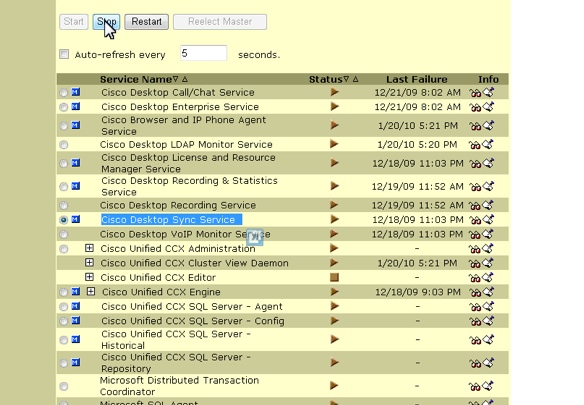
1. Stop and Restart the Desktop Sync service:


I have stopped and started this service during production hours several times, but once again, please see the above disclaimer.  It’s *your* box, not mine…

And last, but not least, if you are still reading this for a solution, for one last hoorah, try this – NOT DURING PRODUCTION:

1. Stop and restart the UCCX node service.  For the version mentioned here, see below, for later versions look to Cisco UCCX Serviceability for the Node Manager service:

This typically resolves the issue, much in the way that applying a hammer to make a very fine adjustment often does. Stopping and restarting this service will take your call center down, so submit your request for a maintenance window with a smile.  Or be prepared to ask for forgiveness if you choose to just go for it.  Again, I wouldn’t lead with the phrase, but Amy said…

Published: 06/25/2012

Upgrades 101

I find the upgrade research process far more entertaining if you approach it like a less than ideal scavenger hunt – a poorly planned, slightly brutal game of talent and luck- mixed with just a pinch of despair.

In this example, which will not begin to cover all the ways/paths/routes you can go for an upgrade, we will take a common scenario and walk through the basic research process. This is more to outline the process and things you should be checking rather than trying to be a comprehensive list of links for upgrades.

I apologize in advance for all the links in this post that will inevitably become dead after a matter of time, but there’s only so much in the universe I can control. Also, I shouldn’t have to say this, but ALWAYS check the latest versions of the documentation – things change – but it’s highly unlikely I’ll modify this post to reflect it.  I’m just lazy that way.

Let’s say in our example you have 5 unified communications servers in your cluster and are looking to upgrade to the latest & greatest versions of each product:
2 Call Managers – MCS7825-H3 with 2×160 GB drives and 2 GB of memory running 7.1.3.20000-2
1 Unity server – MCS7825-H3 with 2×160 GB drives and 2 GB memory running Unity 8.0
2 UCCX servers – MCS7825-H3 with 2×160 GB drives and 2 GB memory running 7.0(1)SR05_Build504

Let’s start with determining the upgrade path for your Unity server:
In case you have been living under a rock, the reign of tyranny Unity has enjoyed over voice engineers has been given an official end date, so if you are looking to upgrade your voicemail server, Unity Connection is the way to go.  The breeze with which this product installs in comparison to it’s predecessor will make you want to kiss your mother-in-law and hug your neighbor’s yappy little dog.

Step one in the Unity Connection research process is to determine your hardware compatibility. In this case, you get to play the find-your-server-model on the Big Long List ‘o Compatibility for the version you want to go to – in this case I pulled up the compatibility list for 8.x of Unity Connection: http://www.cisco.com/en/US/docs/voice_ip_comm/connection/8x/supported_platforms/8xcucspl.html

In our current example, you can see that this model of server is supported for versions of Unity Connection 8.x.   Yay, you! Specifically, it’s supported for Platform Overlay 1 which requires 4 gig of RAM and 2 250 gig drives.

We will want to confirm that our proposed Unity Connection version is compatible with both our current version of CUCM and our proposed upgrade version of CUCM – this typically isn’t an issue since Unity Connection plays very nicely with almost all versions of CUCM, but definitely a check you want to make: http://www.cisco.com/en/US/docs/voice_ip_comm/connection/compatibility/matrix/cucsccpmtx.html

In the case of Unity Connection upgrades, you are going to want to look closely at the DiRT tool and the COBRAs tool to make the transition from the old to the new – there are excellent tutorials/instructions/information on this web page: http://ciscounitytools.com/

Moving on, let’s tackle the process of determining the upgrade path for CUCM:

Step one is once again to determine your hardware compatibility.  Find your model of server on this chart clearly constructed by evil forces seeking to wreak havoc on the universe: http://www.cisco.com/en/US/prod/collateral/voicesw/ps6790/ps5748/ps378/prod_brochure0900aecd8062a4f9.html

Note that if you actually want to see your server model AND the headers at the same time, you are just out of luck unless you have a really, really large monitor or can read really, really tiny font. I’ve been known to take a screen shot of the header row and a screen shot of my server model row and line the two up. The entire time chanting curses upon the chart creators.*

As you can see, our example server does support CUCM 8.6 but there is both an X and a (2).  If you look at the sub notations on this already freaking fabulous chart (note sarcasm font), you will see indicators that while this server is supported, there are certain memory and hard drive upgrade considerations.

In this case, our sample server meets the hard drive specs (160 GB drives), but is going to need an extra two gig of RAM to make the leap into hyperspace. One note here, be sure to watch out for servers that are supported only for bridged upgrades – this means you can take the server up to the latest version, but the only thing it’ll be good for is to take a backup that can be restored onto a supported server. That, and I’m sure it makes a really useful, if somewhat noisy, door stop.

Once you’ve confirmed hardware compatibility of your CUCM servers, you will need to check your upgrade path.  Even though ideally you would like to go directly to the latest and greatest CUCM version, unfortunately you may run across a you-can’t-get-there-from-here scenario – especially if you are looking at upgrading from versions of 6.x.  In our sample case we are looking to go from 7.1.3.20000-2 to 8.6.2.  Time to pull out the magic eight ball.  Nah, actually, just use this document:  http://www.cisco.com/en/US/docs/voice_ip_comm/cucm/compat/ccmcompmatr.html#wp373165

Note that you will likely need to know what your full version number translates to in SU-speak, in this case 7.1.3.20000-2 is actually 7.1(3a).  What you are looking for is your release in SU-speak under the Direct Upgrade column of the release you want to go to. If it’s not there, you are going to get to do a step upgrade – intermediate upgrades FTW! (sarcasm font again)

Be sure if you find yourself in this situation to pick a stable intermediate version.

The last piece of our CUCM cluster upgrade is UCCX (formerly IPCC):
Step one is, of course, to check the hardware compatibility, and there’s a doc for that: http://www.cisco.com/en/US/docs/voice_ip_comm/cust_contact/contact_center/crs/express_compatibility/matrix/crscomtx.pdf

This document may make your head spin a little, but first look for the version of UCCX you want to go with, in our case 8.5(1). Then check and see of your server makes the cut.

In our example case, we do make the cut – our version of UCCX 7.0(1)SR05_Build504 is even listed under supported upgrade paths- BUT looking at the document closely, UCCX 8.5(1) isn’t supported with our current CUCM 7.1.  Welcome back step upgrade.  You will need to keep your UCCX and CUCM versions compatible, so upgrading to UCCX to 8.02 then upgrading CUCM to 8.6, then upgrading UCCX to 8.5(1) will do the trick. And lead to excessive drinking.

Note, however, that our example CUCM version is not explicitly listed in the chart- only 7.1(3) and 7.1(3b) – so if it were me, I would confirm with Cisco support that 7.1(3a) indeed did support UCCX 8.02. Make no assumptions when it comes to the documentation- ever.

After you’ve survived all of this, I’d say your about 1/2 way through the research process.  Among other things, you will still need to review the release notes for each application, check for COP file requirements, check the prerequisites for each proposed version, and confirm phone firmware compatibility. You will also need to check third party application support for all your extra voice applications**, determine the order in which the upgrades need to happen, and review detail over again***.  You’ll also need to determine down times and back out options should upgrades not go as planned. Of course upgrades always go as planned, right? (sarcasm font at it’s finest)

This will get you started on your hardware check, help determine if you need to invest in new servers, and give you an idea of what version you should be targeting and what it’s going to take to get your hardware there.

*To say I hate this chart with the passion of a thousand suns is a woefully pathetic understatement. If it burned in the fires of Hades for all eternity, that wouldn’t be long enough.
**Be sure not to forget to check the compatibility for your Presence servers, your CER servers, your recording servers, your paging servers, your fax servers, your voice gateways, your legacy PBX, and anything else that integrates with CUCM
***Note that in some cases you may actually lose some functionality your users are dependent on, specifically I would mention the loss of built in Attendant Console when making the jump to CUCM 8 and above. Double check everything for gotchas and caveats, it’ll save your arse and your upgrade.

Follow that call!

In this entertaining episode of stump-the-voice engineer, users report a directory number is being routed through the Bermuda Triangle and landing in no-man’s voicemail land.  In fact, the mysterious voicemail greeting being heard by callers sounds like 3 minutes of someone pocket dialing their neighbor’s cat.

Proceeding to the standard fact collection, I find that the path of the call goes something like this:

PSTN -> gateway -> call manager-> directory number 1000 -> call forwarded to CTI route point 1001 -> 1001 call forwarded to Unity Connection voicemail -> voicemail greeting of unknown origin

If you’ve ever had to troubleshoot a similar issue, you probably already know where this is headed.

First test call: dial 1001, listen to greeting. Confirm correct greeting heard. Check.

Second test call: unforward 1000, let it go to voicemail. Surprise users by finding their cryptic voicemail greeting in record time.  Yep, users of this voicemail box had unintentionally recorded 3 minutes of scratchy noises and dead air, somehow managed to enable it as their standard voicemail greeting, and all without being the slight bit conscious of the process. Amazing.

While this of course boggles the mind, it doesn’t actually fix the real issue here – the fact that users want callers to hear the voicemail greeting for 1001 when 1000 is called and 1000 is forwarded to 1001.

For those not familiar, Unity Connection – in this particular case 8.x – has a couple of options on how to handle forwarded calls like the ones we are dealing with here.

The default behavior of Unity Connection is to use the first number when dealing with incoming calls that have been forwarded.  So in our case, even though 1001 is the directory number that forwarded to voicemail, the message for 1000 is being played out for the caller.  You can change this behavior globally by going to System Settings -> Advanced -> Conversations -> scrolling down toward the bottom and checking the Use Last (Rather than First) Redirecting Number for Routing Incoming Call box.

It’ll look something like this:

The problem with this solution is that some people, including the users in this case, actually like routing to voicemail boxes based on the first number called, so changing the behavior globally isn’t the best way to make friends and influence people.

Instead you can create a Forwarded Routing Rule in Unity Connection that changes the behavior just for a single the directory number – and only when that directory number is a redirecting number.

You will want to navigate to Call Routing -> Forwarded Routing Rules -> Add New. The rule looks something like this:

You will then set where you want the call to go. You can direct the call to a Call Handler, a Directory Handler, a Conversation, or to a User with a Voicemail Box.

Lastly, you will click Add New under Routing Rule Conditions to create the match statement.

Your match statement should look something like this:

Be sure to save your condition and your routing rule, and voilà! Incoming calls to voicemail containing the forwarding number you specified will now follow the rule you created. And there will be much rejoicing. If only in your own head.

Published 5/29/2012

The Mole Truth

Troubleshooting FXO lines can be like trying to tie your shoe laces with your teeth.  It’s not that it’s impossible, but you know there must be an easier way. Let me tell you, telecom carriers are not here to make this cumbersome job any easier.

Take for instance a recent case in which debugs showed that the carrier was dropping calls coming into an FXO port.  The symptoms were ones I had seen before – basically users hear a half ring when a call comes in and then, try as they might, they can’t answer the call before the line goes dead. Then they hear another tormenting half ring, and again silence when answered.

Having ruled out the notion that someone was playing one fabulously entertaining and clever joke on poor unsuspecting users, I spent quite some time placing test calls and running debugs the first time I encountered this issue. After some quality time with TAC, I turned the issue over to the carrier, confident the problem was on their end.

In the case at hand, I spent the same amount of time placing test calls and debugs, spent a little less time with TAC, and then once again turned the issue over to this customer’s local carrier, confident something was a muck on their end.

At that’s when the games began. Again.

Granted, I am going to be a bit facetious with these, but I know I am not the only one who has had this experience more than a few times…

Rule one of carrier technicians- never admit there is anything wrong.
Here’s how it works:
Assigned technician immediately claims there is no issue at all, everything is just fine.
Uh, so when you call this number the call goes through for you? No. Well, you see, that’s the problem…

Rule two of carrier technicians- make a token appearance on site.
Here’s how it works:
Unbeknownst to you, technician arrives on site, makes bold claims that all things carrier side work fine, and leaves.  Technician calls and tells you about it later.
Wait, are you sure?  Did you get dial-tone up to the demarc?  Oh, you didn’t check for dial-tone…yeah, we need you to go back and confirm that…

Rule three of carrier technicians- make second on site visit, use test equipment, resolve issue.
Here’s how it works:
Technician begrudgingly gets out test equipment and uses it to tone out the line.  Finds moles.
I’m sorry, did you say moles?  Yes, ma’am, moles. A whole family of ’em.

Okay, so maybe finding moles isn’t the rule, but it certainly was an entertaining exception.  You see, the half rings were a symptom in both of my cases of damaged copper wires.  In the first case, the wires had been terminated poorly and exposed.  In the second, a family of moles had decided copper wires make the best houses.

What did I learn from these experiences?  One, tests calls and debugs are your friend.  Two, the carrier technician isn’t.  That is stated a bit harsh- I do have it on good authority that carrier technicians are people too and not in fact spawned from evil alien overlords…BUT a good engineer has to have a willingness to be an advocate on their customer’s behalf. Even when told repeatedly everything is fine- just fine.

In my cases, I had to insist the technician tone out the lines – all other indicators on the carrier side were telling the technician things were fine.  However, once the wires were toned and traced, there was no time wasted getting the lines repaired.

So don’t be afraid to ask the technician to take that second look.  Ask for the results of whatever packet capture that has been done or test that has been performed.  Verify that proper troubleshooting was done – but handle it professionally, because you never know when those debugs, tests, and traces are going to show you missed something.  And then it’s your words you get to eat, so make sure they aren’t sour.

Published 04/12/2012